Repository navigation
Heatmap

If you started with a FASTA file or a distance matrix, MicrobeTrace offers a heatmap visualization.
To see it, click on "View" the Menu bar (at the top of the screen), and then "Heatmap". This will open a new window. Note that rendering the heatmap may take a moment, during which the window will appear blank. Once the computation is completed, the heatmap will appear.

Each cell in the heatmap represents the genetic distance between two sequences in the dataset. The cells across the diagonal (bottom-left to top-right) represent a comparison of a sequence to itself (i.e., will have a genetic distance of zero, resulting in the visibly distinct diagonal line). The scale bar on the right of the heatmap indicates the color scheme used for the range of genetic distances in the dataset analyzed. The actual genetic distance value can be viewed by hovering the mouse pointer over the desired cell in the matrix. A pop-up bubble will show the IDs of the two sequences and their calculated genetic distance.
You can see the actual distance metric by hovering over the desired cell in the map. It is also displayed at the top of the page. A popup will show the IDs of the two sequences and their distance.
The heatmap can be customized to suit your styling preferences. You can select the distance metric used to populate the heatmap.
By default, the heatmap shows values emanating from bottom-left to top right, but this can be reconfigured to suit your use case by inverting either or both axes.
The color scheme goes from dark blue in the low ranges to red in the high ranges, with pale yellow in the middle. This was selected for aesthetic value and color-blind accessibility, but can be changed to suit other styling preferences. Simply click on the colors in the Color scheme row and select the desired replacement.
Finally, the heat map can show axis labels. This is disabled by default because it tends to create unreadable jumbles for more than a couple dozen sequences. If you have a reasonably small number of sequences, you might prefer to show the axis labels. See figure below for available settings.

Once the settings are applied, you can see the customized heatmap below

This graphic can be saved. To do this, click the download icon on the top left corner

Use the export dialog to navigate to the desired destination and type in a filename. The heatmap graphic can be saved as either a png or jpg image file. In addition, you can also export distances in the form of a csv file.

⚠️ Feature in development: Custom Heatmaps are in development and are not yet available on the main MicrobeTrace site.
Custom Heatmaps use fields already present on imported node or link records. The imported data does not have to be a CSV. Choose a layout based on how each record stores the values you want to display.
- Import the records and launch MicrobeTrace.
- Select View > Heatmap.
- Select the Settings gear in the Heatmap toolbar, then open Configuration.
- Choose the matching Data Layout.
| Data Layout | Use it when each record contains | Fields to choose |
|---|---|---|
| One cell value per record (long) | One row label, one column label, and one value | Column Axis, Row Axis, and Cell Value |
| Multiple cell values per record (wide) | One row label and values for several Heatmap columns | Row Labels and one or more Value Columns |
MicrobeTrace suggests fields when you switch layouts. Review those suggestions before interpreting the Heatmap. Row and column labels are shown by default when you switch to either custom layout; they can be hidden in Appearance.
Use this layout when each record supplies a single Heatmap cell. For example:
| Serum | Isolate ID | HI Titer |
|---|---|---|
| S1 | Virus A | 40 |
| S2 | Virus A | 80 |
| S1 | Virus B | 20 |
| S2 | Virus B | 40 |
Set Column Axis to Serum, Row Axis to Isolate ID, and Cell Value to HI Titer. The same layout can be used with categorical results by selecting a categorical field as Cell Value.
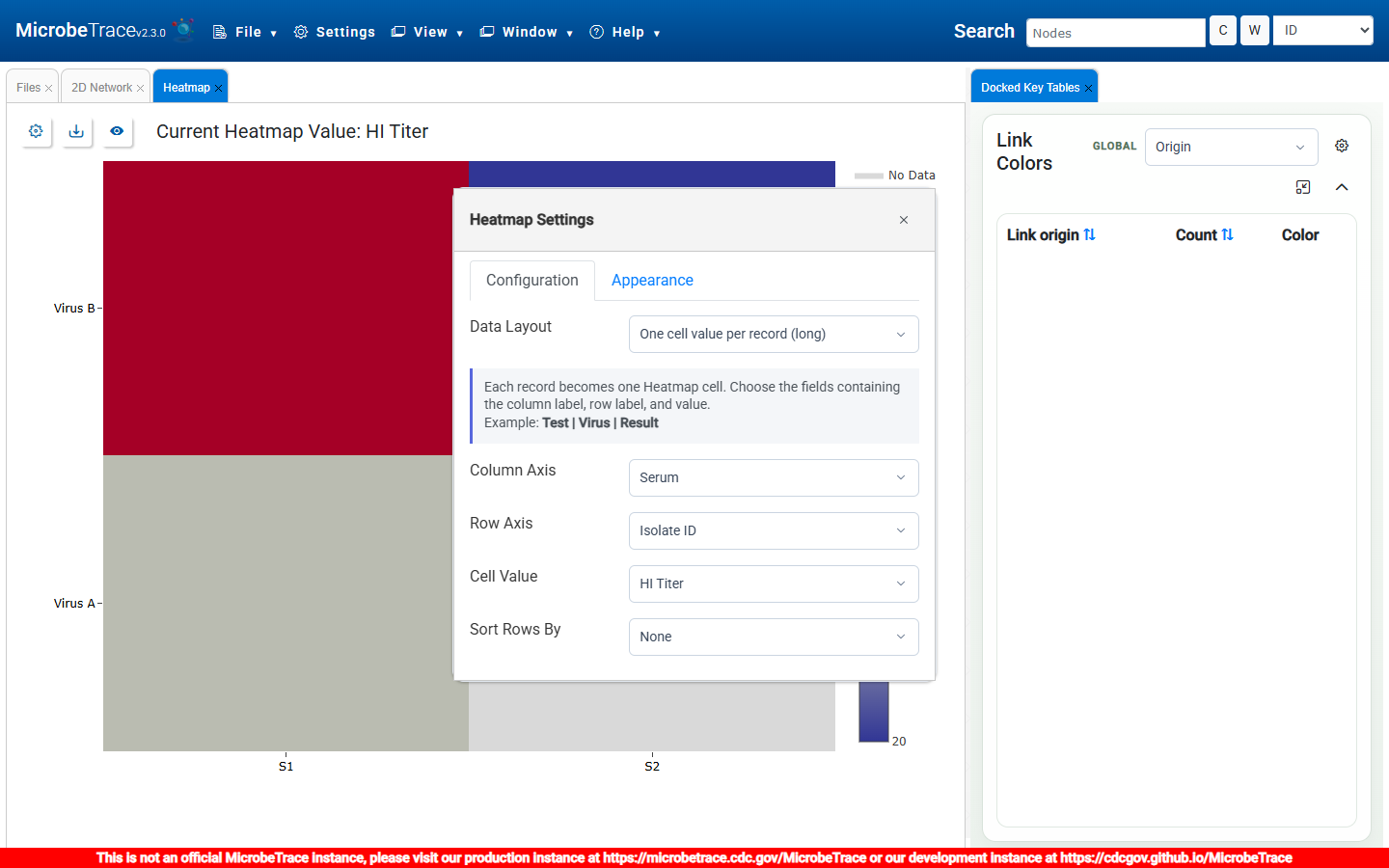
Use this layout when each record supplies an entire Heatmap row. For example:
| Virus | A/Bris/10/07 | A/Per/16/09 | A/S Aus/3/11 |
|---|---|---|---|
| A/Brisbane/10/2007 | 1280 | 160 | 320 |
| A/Perth/16/2009 | 80 | 1280 | 640 |
| A/Ghana/FS-11-1014/2011 | 320 | 160 | not tested |
Set Row Labels to Virus, then select all assay fields under Value Columns. Each selected value field becomes a Heatmap column.
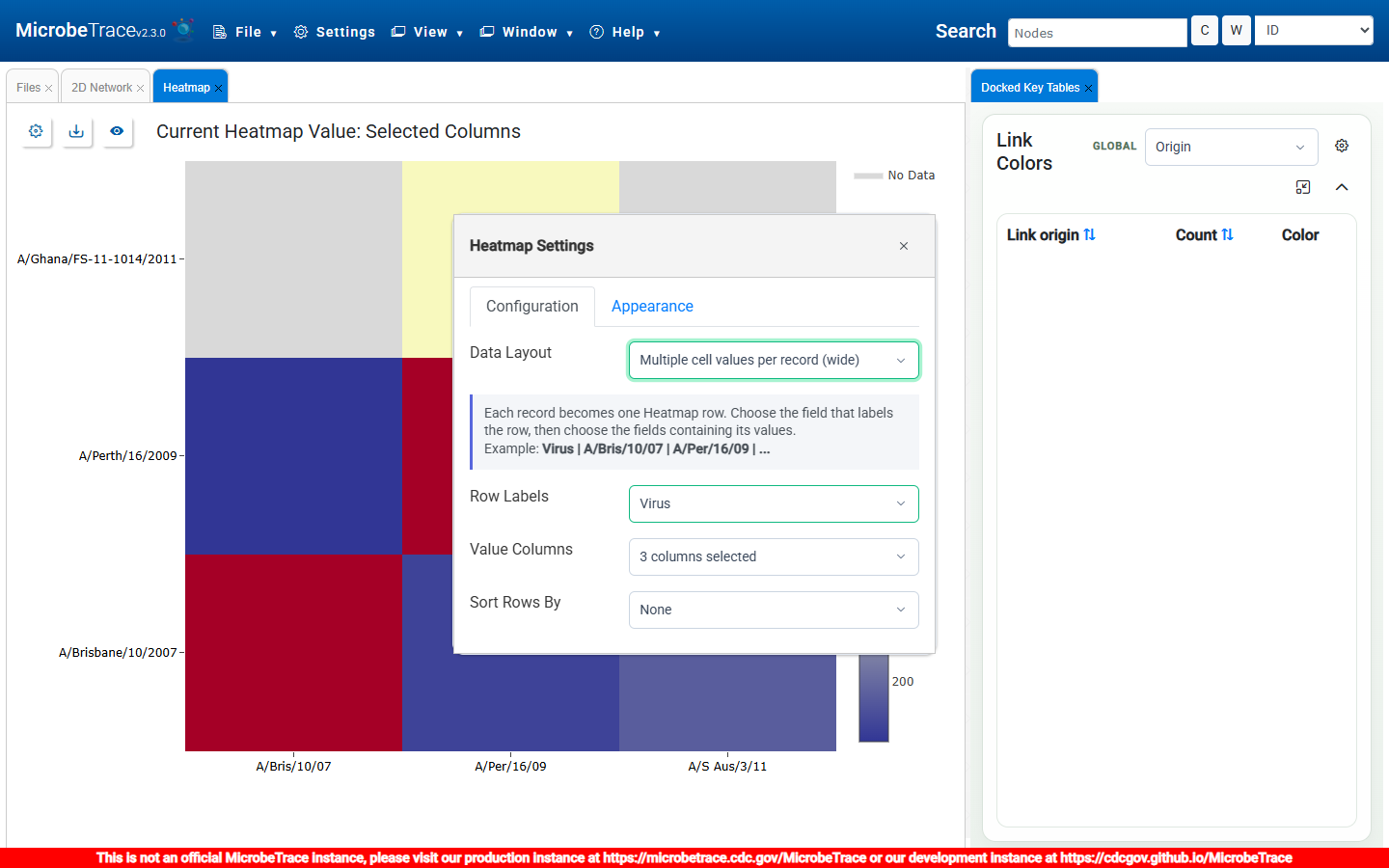
- Numeric values use a continuous color scale. Categorical values use a separate color for each category.
- Blank or recognized missing values are displayed as No Data. The missing-value color can be changed under Appearance.
- Hover over a cell to see its row label, column label, and value.
- Use Sort Rows By when a field provides the desired order. Use Invert X Axis or Invert Y Axis under Appearance to reverse an axis.
- If more than one long-format record maps to the same row and column, MicrobeTrace displays a warning and renders the first non-missing value.
The Heatmap toolbar can export the displayed custom Heatmap as PNG, JPEG, or SVG, or export the displayed matrix as CSV. Saving a .microbetrace session preserves the custom layout, selected fields, colors, label visibility, sorting, and axis direction.