Manual
As a sandboxed app, MarkEdit cannot set itself as the default app for opening Markdown files. Here's how to set it manually:
- Select a Markdown file in Finder
- Press ⌘ I
- Select MarkEdit in the
Open with:section - Click
Change All...and confirm
For HTML preview functionality, including side-by-side view, refer to the MarkEdit-preview extension.

MarkEdit fully supports inline predictions on macOS Sonoma.

You can also press the right Option key to accept a suggestion without adding any punctuation.
MarkEdit also fully supports Writing Tools on macOS Sequoia.

The system provides several ways to access Writing Tools, and you can also customize the toolbar like this:

Writing Tools are available on all ARM-based Macs (Apple silicon). See Apple's documentation to learn more.
MarkEdit doesn't have a built-in command-line tool, but you can open a file from Terminal with:
open -a MarkEdit /file/path.mdYou can create a shell alias to use it as markedit /file/path.md:
alias markedit="open -a MarkEdit"
Alternatively, you could also add this script to /usr/local/bin/markedit:
#!/bin/bash

open -a MarkEdit $1
After running chmod 755 on this file, you can use markedit /file/path.md to open files. Learn more.
When working with large documents, you can navigate between section headings using these keyboard shortcuts:
- ⇧ ⌘ O to open the menu (and arrow keys to navigate)
- ⌥ ⌘ ↑ to select the previous section
- ⌥ ⌘ ↓ to select the next section
Note
The ⇧ ⌘ O shortcut requires the Table of Contents item to be available on the toolbar.
You can easily create multiple selections by holding ⌘ while selecting text.
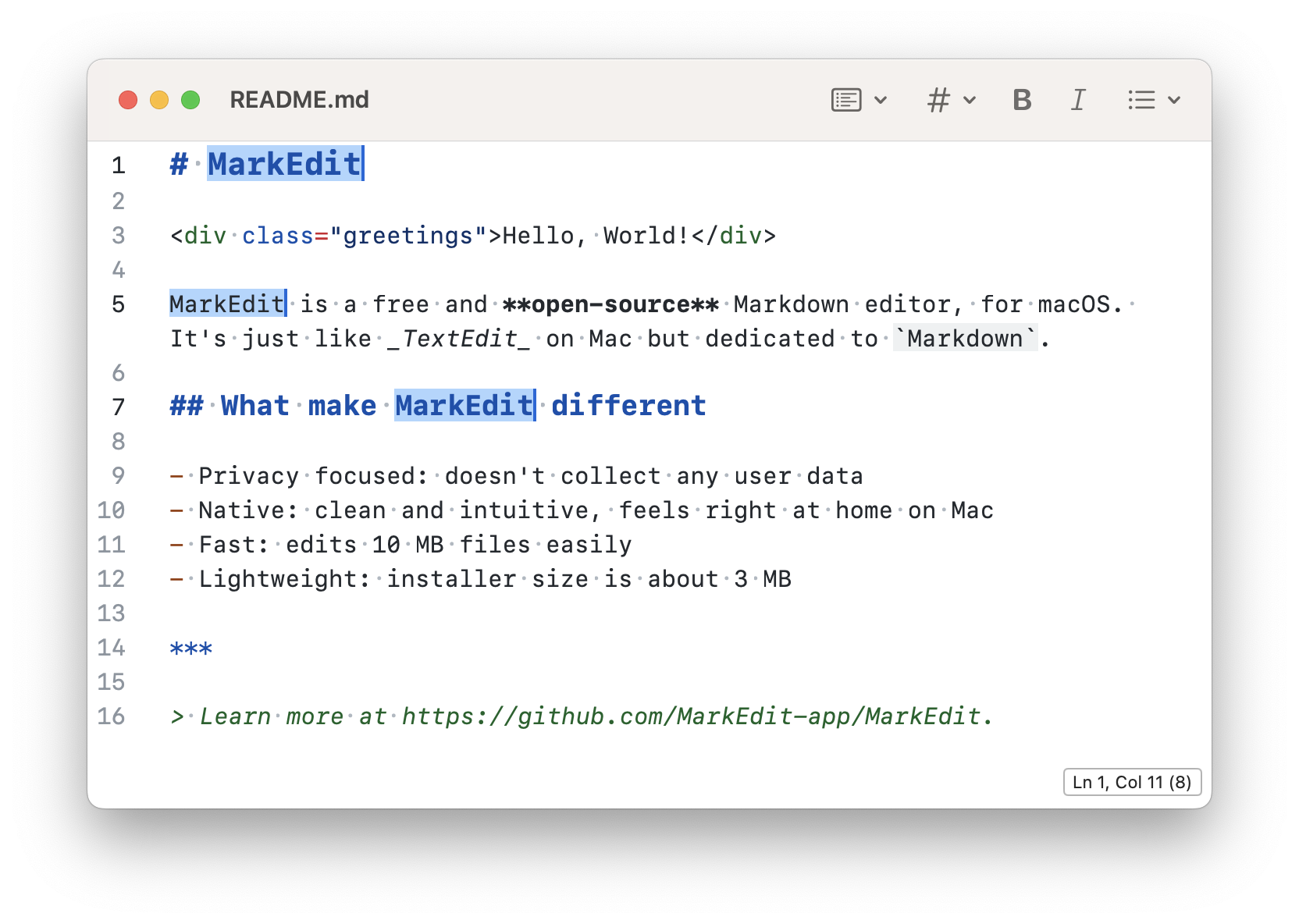
MarkEdit also lets you select a rectangular block of text by holding ⌥ while selecting.
Tip
You can also right-click and choose Select All Occurrences to edit every occurrence at once.
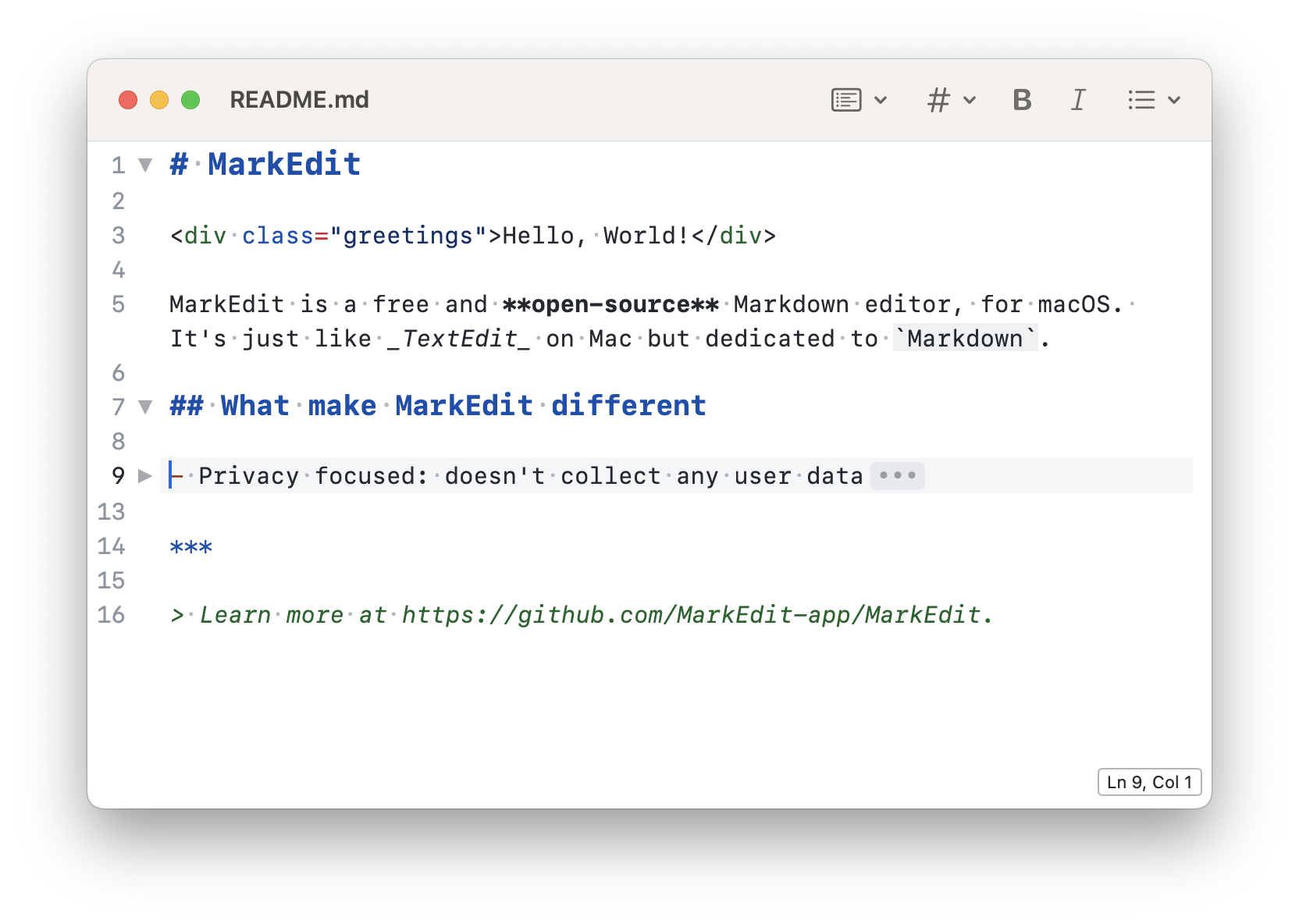
Hover over the line-number gutter to fold section headings, code blocks, and other elements.
MarkEdit supports word completion. Press option-esc or fn-F5 to complete your input:
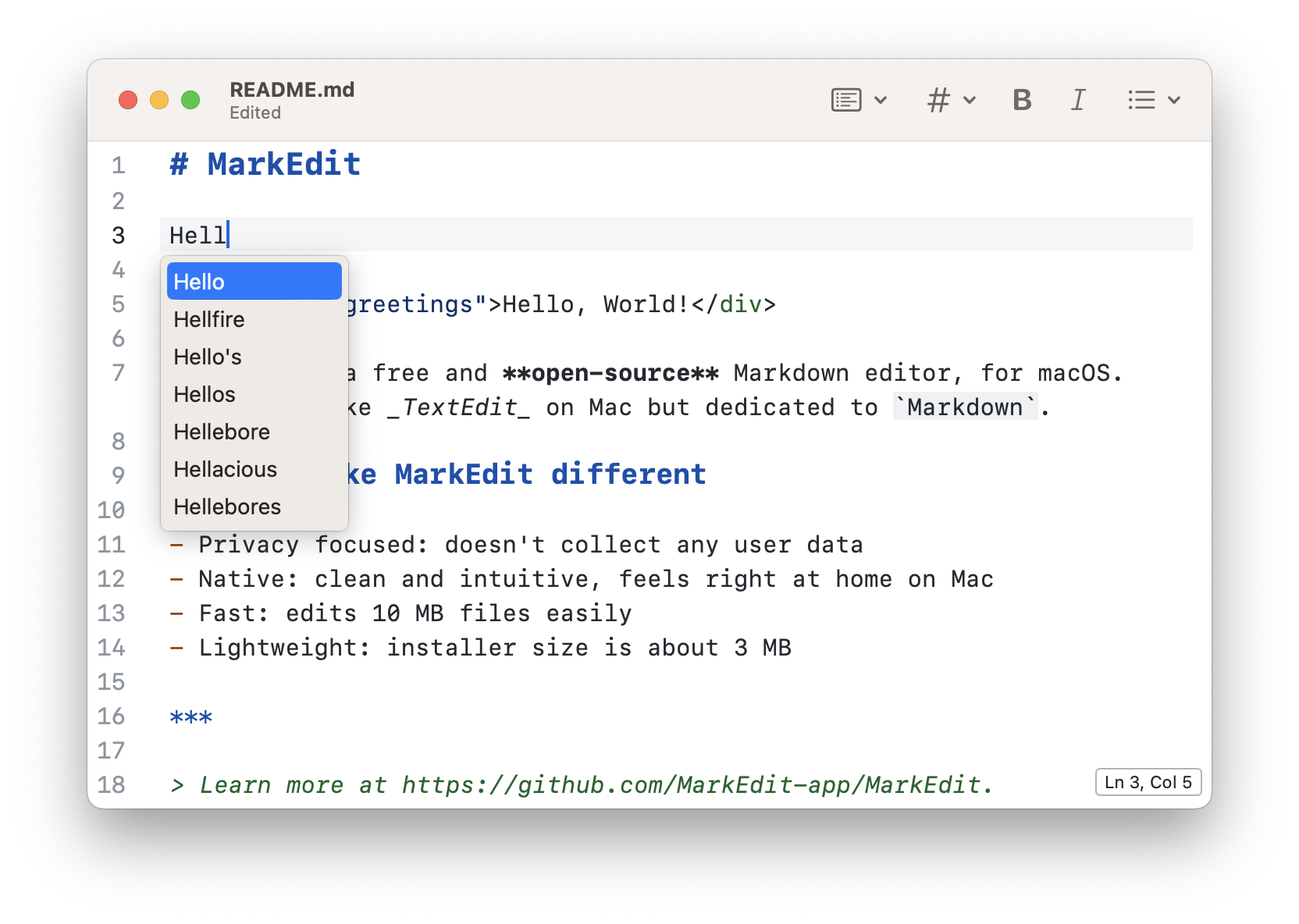
In this mode, use the arrow keys (or ctrl-n and ctrl-p) to navigate between items, enter or tab to accept a suggestion, and esc to dismiss the panel.
If you rely on this feature heavily, it's recommended to enable Suggest while typing:
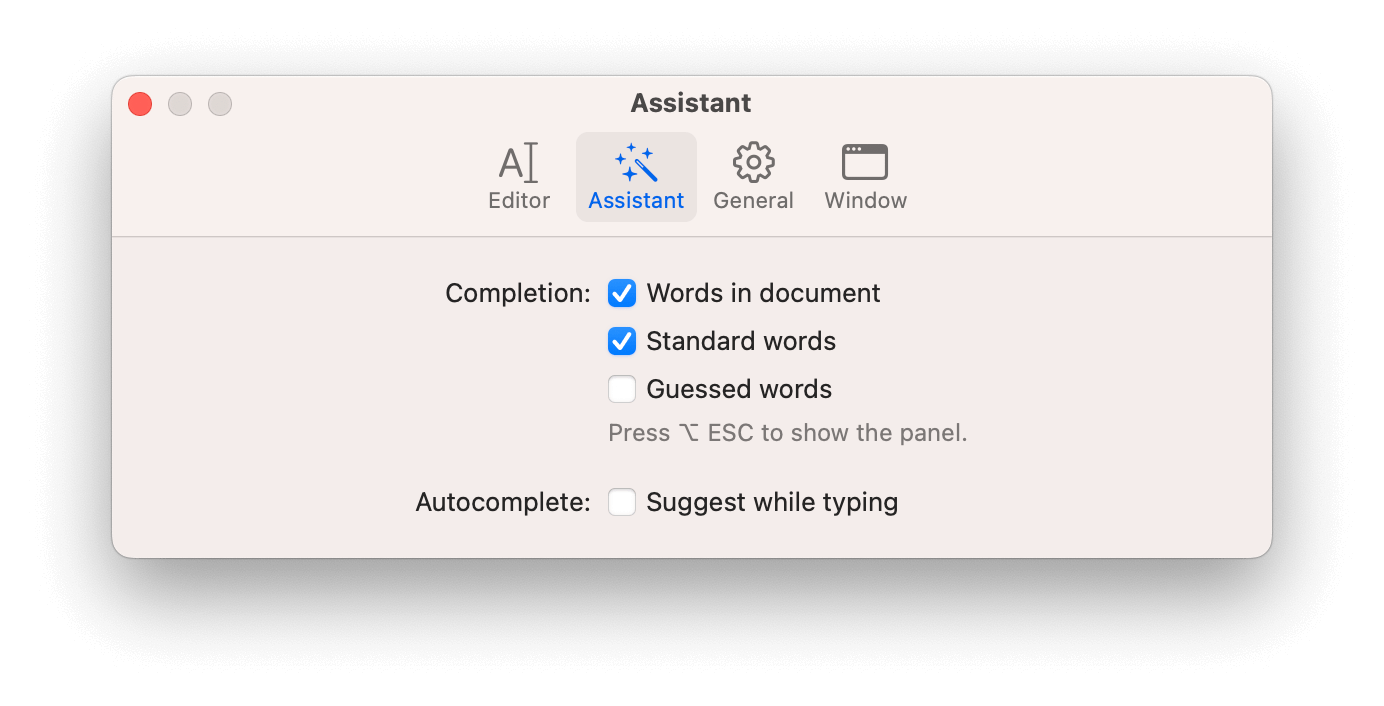
Tip
MarkEdit also autocompletes internal anchors (type #), footnotes (type ^), and files (type . or /) inside links.
MarkEdit supports all native text-checking features. You can toggle them from Spelling and Grammar in the Edit menu.
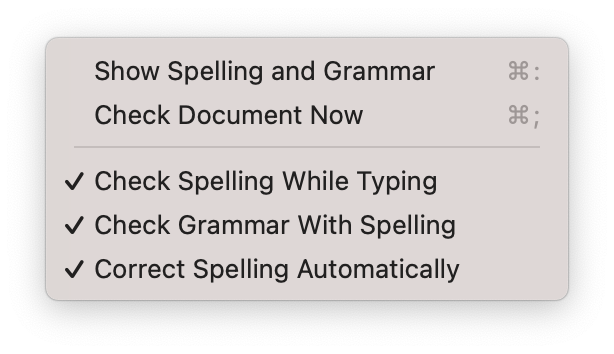
If you rely heavily on automatic spelling correction, we recommend setting Render Invisibles to selection for better autocorrect performance.
Tip
Alternatively, right-click in the editing area to access these options.
MarkEdit has a built-in statistics view:

To keep the UI clean, this view is hidden by default. To enable it, right-click the toolbar and select Customize Toolbar:

You can also open it by pressing ⇧ ⌘ I. Press the shortcut again to dismiss it.
Define custom counting rules for the Statistics panel in:
~/Library/Containers/app.cyan.markedit/Data/Documents/statistics-rules.json
Each rule has three fields:
| Field | Type | Description |
|---|---|---|
title |
String | Label shown in the Statistics panel |
icon |
String | SF Symbol name |
pattern |
String | Regular expression pattern to match |
Rules with zero matches are automatically hidden. Example:
[
  {
    "title": "CJK Characters",
    "icon": "character.textbox.zh",
    "pattern": "[\\p{Han}\\u{3000}-\\u{303F}\\u{FF01}-\\u{FF60}\\u{FE30}-\\u{FE4F}\\u{2018}-\\u{201F}\\u{2013}\\u{2014}\\u{2026}]"
  }
]You can open MarkEdit from other apps using the URL scheme markedit://.
To create new files, set parameters like this:
markedit://new-file?filename=[filename]&initial-content=[initial-content]
Both filename and initial-content are optional and must be properly URL-encoded.
To bring up the open panel, use:
markedit://open
To open a file with its path, use:
markedit://open?path=[file-path]
To install extensions, use:
markedit://install-extension?id=[id]
markedit://install-extension?url=[url]
See MarkEdit Extensions for examples.
MarkEdit has a Quick Look extension that provides syntax highlighting for Markdown files in Finder.
To enable it, go to System Settings > General > Login Items & Extensions and make sure MarkEdit's Quick Look extension is enabled.
The Quick Look extension is intentionally kept simple. It is much smaller than the main app, does not include every feature, and does not share the main app's configuration.
Note
It may not work in some cases, check #448 for details.
With the latest MarkEdit-preview extension, Quick Look can also render Markdown as HTML.
MarkEdit has a Finder extension for quickly creating untitled text files from either the contextual menu or the toolbar.
To enable it, go to System Settings > General > Login Items & Extensions and make sure MarkEdit's File Provider extension is enabled.
Warning
This feature is deprecated and will be removed from the app. See #1627 for details.
MarkEdit doesn't support exporting Markdown files to formats such as PDF or Microsoft Word. Instead, you can copy Pandoc commands in MarkEdit and paste them into Terminal to run them.
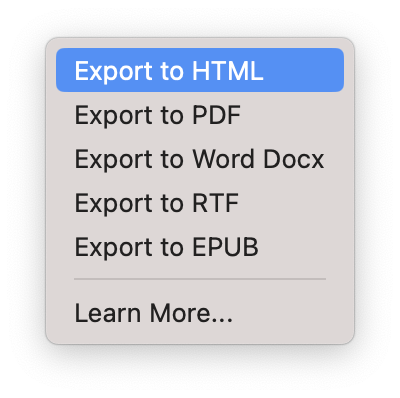
We cannot improve on what Pandoc already does. If you write Markdown on macOS, you should try Pandoc. For detailed instructions, refer to its official user manual.
The Pandoc defaults file is located at ~/Library/Containers/app.cyan.markedit/Data/Documents/pandoc.yaml. You can change its options and variables to suit your needs.
Tip
See #1464 for math rendering preferences.
You can also use mdfmt, created by @mnott. More details are available here.
MarkEdit keeps the UI clean while still providing a subtle way to customize the app through these files:
~/Library/Containers/app.cyan.markedit/Data/Documents/editor.css
~/Library/Containers/app.cyan.markedit/Data/Documents/editor.js
~/Library/Containers/app.cyan.markedit/Data/Documents/settings.json
For details, please check out Customization.
By leveraging the App Shortcuts feature provided by macOS, you can assign a key combination to a function, as long as it is available as a menu bar item. For example:

Learn more: Create keyboard shortcuts for apps on Mac.
To discard your settings changes and return to the initial state, run this command and restart the app:
defaults delete app.cyan.markedit
Note
The preferences file will be re-created, and other user data, such as documents, will not be affected.
If you would like to manipulate text like a Pro, please check out MarkEdit-api and Text Processing.