
Build device interfaces, network services, and application logic directly on your embedded system. Xedge brings the Barracuda App Server (BAS), Lua runtime, and a browser-based integrated development environment (IDE) to Zephyr. Keep hardware control in C and develop your Lua and Lua Server Pages (LSP) applications from the browser, without reflashing firmware for each application change.
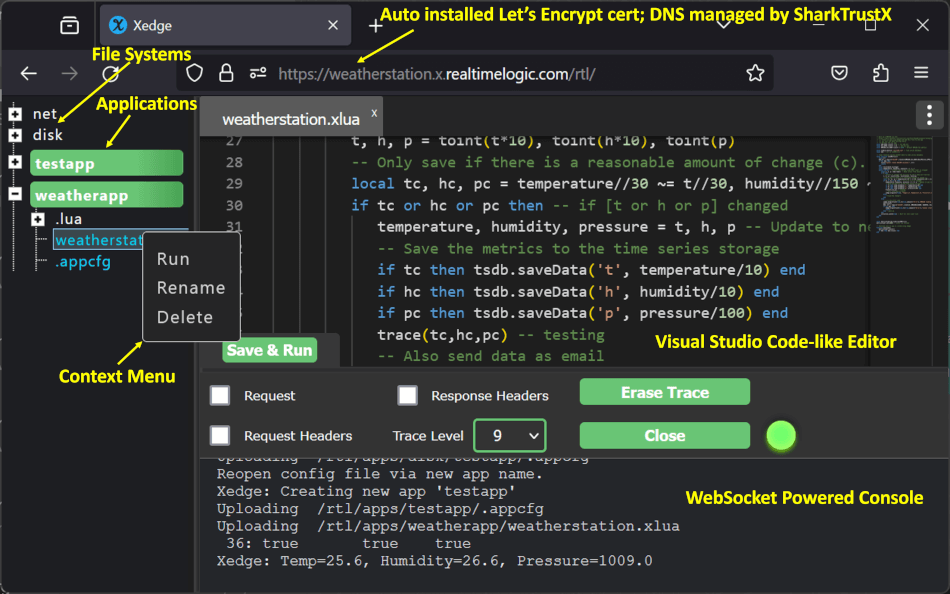
Figure 1: Xedge in developer mode
We recommend at least 2 MiB for the Xedge heap, with additional RAM for Zephyr and your native application. The example settings below reserve generous heaps to give you room for larger Lua applications and many concurrent HTTPS connections. You can tune this allocation to your product's needs with CONFIG_XEDGE_HEAP_SIZE (in bytes) in your board's configuration. See Configure the firmware.
| Target | Build and run guide | Xedge heap | Application storage |
|---|---|---|---|
| Linux / WSL2 simulator | Simulator setup below | 2 MiB | 1 MiB simulated flash |
| NXP MIMXRT1020-EVK | Board guide | 70% of 32 MiB SDRAM | 4 MiB QSPI flash |
| NXP MIMXRT1060-EVKC | Board guide | 70% of 32 MiB SDRAM | 12 MiB QSPI flash |
| ST STM32F746G-DISCO | Board guide | 70% of 8 MiB SDRAM | 14 MiB QSPI flash |
Complete the common setup below, then follow your target's guide. Once Xedge is running, continue with Use Xedge. To integrate another board, see Adding a board.
Build on Linux or in WSL2 on Windows. Follow the Zephyr setup guide to install host tools, the Zephyr SDK, west, and a Python virtual environment. This guide uses Zephyr commit 935a5283f19197cd048dd93b40a87774a35ea9a4 (4.3.99), Zephyr SDK 1.0.0 with ARM GCC 14.3.0, west 1.5.0, and Python 3.12 or newer.
Resource generation also needs zip, curl, and a host C compiler. Install Node.js and npm if you want to minify the JavaScript and CSS resources.
Activate the virtual environment created during Zephyr setup:
# Adjust this path if you created the environment elsewhere.
source ~/zephyrproject/.venv/bin/activate
For the simulator on an x86-64 Debian/Ubuntu host, install the 32-bit FUSE development libraries and multilib compilers. FUSE exposes the simulated filesystem to the host:
# native_sim builds as a 32-bit Linux application.
sudo dpkg --add-architecture i386
sudo apt-get update
sudo apt-get install -y libfuse-dev:i386 gcc-multilib g++-multilib# Create a dedicated workspace and select the Zephyr revision.
west init -m https://github.com/zephyrproject-rtos/zephyr ~/xedgews
cd ~/xedgews
git -C zephyr checkout --detach 935a5283f19197cd048dd93b40a87774a35ea9a4
west update
west zephyr-export
python -m pip install -r zephyr/scripts/requirements.txtIf you already have a west workspace, use it instead of initializing another one. Substitute its path for ~/xedgews in the following commands.
# Clone Xedge, then initialize its BAS runtime and Lua/web resources.
mkdir -p ~/xedgews/modules
cd ~/xedgews/modules
git clone https://github.com/RealTimeLogic/Xedge4Zephyr
cd Xedge4Zephyr
git submodule update --init --recursive
The submodule command downloads the BAS and BAS-Resources revisions recorded by this repository so the runtime and packaged resources match. Cloning with --recurse-submodules performs the same initialization.
To update an existing checkout, run:
cd ~/xedgews/modules/Xedge4Zephyr
# Pull repository updates, then select their recorded dependency revisions.
git pull --ff-only
git submodule update --init --recursive
Regenerate the resources as described below and rebuild your target after updating. The submodule command follows this repository's recorded commits, rather than independently selecting each dependency's latest branch revision.
Xedge's Lua modules and browser interface are packaged into a ZIP and converted into XedgeZip.c, which the firmware build compiles into the image:
cd ~/xedgews/modules/Xedge4Zephyr/BAS-Resources/build
# Exclude OPC UA, use the large CA store, and skip JS/CSS minification.
unset USE_OPCUA XedgeCaStore NO_BIN2C
printf 'n\nl\nn\n' | bash Xedge.sh &&
  cp XedgeZip.c ../../BAS/examples/xedge/XedgeZip.c
The certificate authority (CA) store supplies trusted roots for outgoing Transport Layer Security (TLS) connections. To choose other resource options, run bash Xedge.sh interactively and copy the resulting XedgeZip.c to the same location. Regenerate it after changing BAS-Resources or its packaging options; edit the resource sources rather than the generated C file.
For hardware, continue with the RT1020, RT1060, or STM32 instructions. For the simulator:
cd ~/xedgews
# Let pkg-config find the simulator's 32-bit FUSE library.
export PKG_CONFIG_PATH="/usr/lib/i386-linux-gnu/pkgconfig:${PKG_CONFIG_PATH}"
west build -d build-native -b native_sim modules/Xedge4Zephyr/XedgeInit -- \
  -DEXTRA_ZEPHYR_MODULES="$PWD/modules/Xedge4Zephyr"
EXTRA_ZEPHYR_MODULES adds this checkout to Zephyr's module list. If Xedge is outside the workspace, use its absolute path for both the application and module arguments. In WSL, a Windows path such as C:\projects\Xedge4Zephyr becomes /mnt/c/projects/Xedge4Zephyr.
Keep a separate build directory for each target. Zephyr loads the target's .conf and .overlay files from XedgeInit/boards/. Use a new build directory when switching targets or checkouts. For subsequent builds, run west build -d build-native, or substitute the hardware build directory.
The simulator uses 10.200.200.2. The host's zeth virtual Ethernet interface uses 10.200.200.1 and routes simulator traffic to the host network.
Copy the interface configuration once:
# Run after west update has installed tools/net-tools.
cp ~/xedgews/modules/Xedge4Zephyr/zeth.conf ~/xedgews/tools/net-tools/zeth.conf
Start the interface and enable routing and Network Address Translation (NAT) before launching the simulator:
sudo ~/xedgews/tools/net-tools/net-setup.sh start
# Uses the host's default outbound interface and gateway.
sudo bash ~/xedgews/modules/Xedge4Zephyr/setup-gateway.sh
cd ~/xedgews
west build -d build-native -t run
The gateway script enables IPv4 forwarding, adds firewall rules, and uses routing tables 100 and 200. If your host already uses those tables, choose unused IDs in the script. To override network detection, pass WAN_IFACE (interface name) and LAN_DEFAULT_GW (gateway IPv4 address) as strings:
# Replace these example values with those shown by ip route.
sudo env WAN_IFACE=eth0 LAN_DEFAULT_GW=192.168.1.1 \
  bash ~/xedgews/modules/Xedge4Zephyr/setup-gateway.sh
On Linux, open the Xedge IDE. On WSL2, use one of the access methods below.
For browser access through a local forwarder, install socat and run this in a separate WSL terminal:
sudo apt-get install -y socat
# Keep this process running while using the IDE.
socat TCP-LISTEN:8090,fork,reuseaddr TCP:10.200.200.2:80
Open Xedge through localhost. If Windows-to-WSL localhost forwarding is disabled, use http://<wsl-ip>:8090/rtl/; find the WSL IPv4 address with ip -4 addr show eth0.
For direct access to all simulator ports, add a Windows route instead. Run this in an Administrator PowerShell, replacing the example address with the WSL IPv4 address:
# Refresh this route if WSL's address changes after a restart.
route add 10.200.200.0 mask 255.255.255.252 172.29.54.156
Then open the simulator IDE.
The first boot formats empty simulated flash as LittleFS and mounts it at /xedge. Keep the flash backing file and use the same run directory to retain applications and settings across restarts. A missing xcfg.bin message disappears after you save Xedge settings.
The application obtains the time from pool.ntp.org using SNTP. If time synchronization fails, check the host routing, DNS, and outbound UDP port 123. Accurate time is needed for certificate validation. The simulator uses test entropy and is intended for development.
Open http://<device-ip>/rtl/, using the address printed by the board's serial console or 10.200.200.2 for the simulator. The browser IDE lets you edit files and start or stop applications on the device. Files saved in the disk filesystem are stored under /xedge in LittleFS.
- Expand the disk filesystem in the left pane. Right-click it and select New Folder; name the folder
hello. - Right-click
helloand select New App. Set Name tohello, enable LSP App, and set Directory Name tohello. Leave Domain Name empty and save. - Create
index.lspin that folder and save the following content:
<!-- Lua inside the LSP tag runs on the device for each request. -->
<!doctype html>
<html lang="en">
<title>Hello from Xedge</title>
<h1>Hello from Xedge</h1>
<p>The device calculated 6 × 7 = <?lsp= 6 * 7 ?>.</p>
</html>- Open the application's configuration, turn Running on, and save. Visit
/hello/index.lspon the same host and port used for the IDE. - Edit the page, save, and refresh the browser to see the change. Enable Auto Start when you want the application to start after a device restart.
Use .preload for application initialization and .xlua files for Lua programs that start with the application. Use LSP pages for HTML generated on the device. The Xedge user guide explains application lifecycle, ZIP deployment, file access, and the IDE controls.
HTTPS listens on port 443. The initial demonstration certificate causes a browser trust warning. Open the IDE over HTTP for initial setup. For automatic certificates, open the three-dot menu and select TLS Certificate, supply an email address and device name, and save. Leave Let's Encrypt Staging off to obtain a browser-trusted certificate; staging certificates are for development. The device needs working DNS, Internet access, and a synchronized clock. Open the assigned HTTPS hostname after issuance completes.
Use Authentication in the same menu to configure IDE users. Follow the Xedge configuration guide for certificate and authentication options, including the keys and service configuration needed for product deployment.
Add C-to-Lua bindings in xedgeOpenAUX() in XedgeInit/src/main.c to expose sensors, device controls, or existing firmware services. Keep the startup synchronization in that function. Examples are provided in led.c and AsynchLua.c.
Follow the Lua binding tutorial to create bindings, then use them from your Xedge applications. The online Lua tutorials cover web applications, network clients, messaging, and other BAS APIs.
# Substitute your hardware build directory when configuring a board.
west build -d build-native -t menuconfig
Search for XEDGE with /. Save permanent settings in XedgeInit/prj.conf for all targets or in the target's XedgeInit/boards/*.conf for one board.
| Setting | Type and default | Use |
|---|---|---|
CONFIG_XEDGE_HEAP_SIZE |
Integer bytes; 2,097,152 | BAS/Lua heap; hardware boards override this to 70% of their SDRAM |
CONFIG_XEDGE_STACK_SIZE |
Integer bytes; 24,000 | Xedge server stack and BAS thread stack size |
CONFIG_XEDGE_MAX_THREADS |
Integer; 2, range 1 to 10 | BAS server worker limit |
CONFIG_XEDGE_THREAD_PRIORITY |
Integer; 5, range 2 to 15 | Server priority; smaller numbers mean higher priority |
CONFIG_XEDGE_ENABLE_DISK_IO |
Boolean; y with filesystem support |
Store applications and settings in /xedge |
CONFIG_XEDGE_ENABLE_DEBUGGER |
Boolean; y |
Lua debugger support |
CONFIG_XEDGE_ENABLE_ENCRYPTION_KEY |
Boolean; y |
Configuration encryption support; configure your product key in BAS/examples/xedge/src/EncryptionKey.h |
CONFIG_XEDGE_ENABLE_SHARKTRUST |
Boolean; y |
SharkTrustX certificate service integration; configure the service token in BAS/examples/xedge/src/tokengen.c |
Xedge's heap is separate from Zephyr's heap, network pools, and static thread stacks. Keep the DNS socket-service thread at a higher priority than BAS threads; the shared configuration uses priorities 2 and 5 respectively. See Adding a board for memory placement and storage configuration.