Repository navigation
Scaling issue in WindowBuilder when Windows Scaling is not at 100% #135
Description

If Windows scaling for text, applications and elements is NOT set to 100% WindowBuilder will not show the right scaling for the components. The frame icon has double of is's normal size and close, minimize and maximize button wont show up.
I'm using all latest versions that are available and also did a completly reinstall Eclipse, WindowBuilder als well as JDK 17
Steps to reproduce
- Go to your Windows settings.
- Go to "System".
- If not already open, klick on "Display"
- Set "Scaling and arrangement" to something other than 100%
- In my case I got an 13.5", 3000 x 2000 Display where it's 200% scaling factor is necessary.
- Start Eclipse, open a project, open the file with WindwoBuilder, create what ever frame you want and go to the "Desing" page.
- What is the current bug behavior?
I'm not 100% sure but I thing that even while Eclipse seems to understand that Windows scaling is active, this information is somehow not providet to WindowBuilder. Even when setting auto scaling to 100% at the eclipse.ini file only fontsize and icon size that are part of the Eclipse UI change but NOT those from WindowBuilder.
I also tried to change the properties of Eclipse.exe file with my default Windows Scaliung at 200% and nothing addet to the .ini file. Therefor I searched that file, right klicked on it, went down to properties, then to compatibility and ther on "change high-DPI settings. There I enabled the overwriting of high-DPI scaling and change it to System (Extended).
Confirm both Windows and (re)start eclipse. Now WindowBuilder shows the right scaling but if you hover your mouse over the "Source" and "Desing" fields at the bottom left they disappear but you can still klick them. If you press ssome random button or field or just switch to an other application the show back up.
What is the expected correct behavior?
The same as when scaling is at 100%.
Scaling at 1

Scaling at 200% Eclipse2
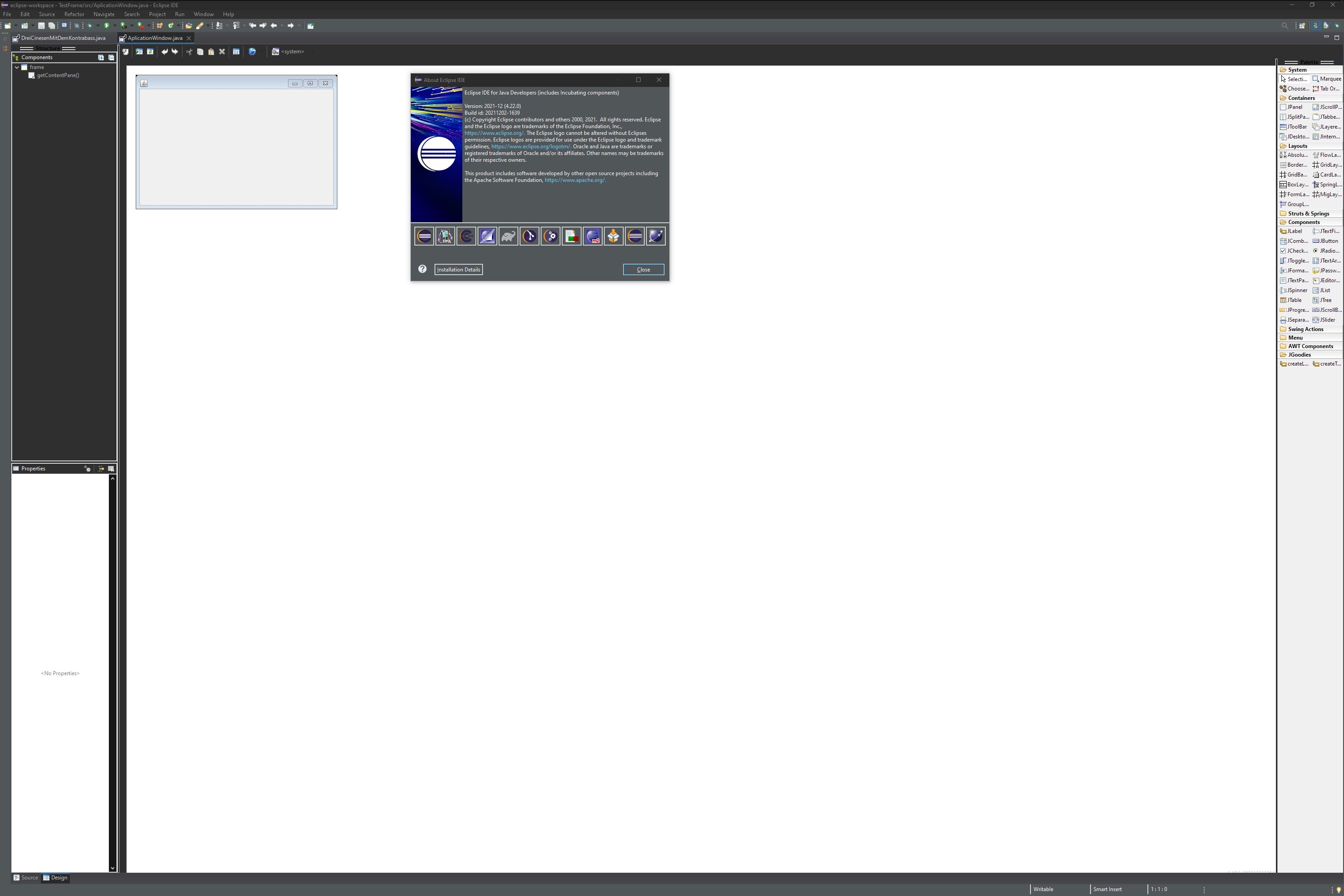
Activity
lcaron commentedon Jan 11, 2022
Hi
First of all I would like to thank you for this very clear and precise description.
The original code of WB was designed when scaling was not possible, so this behaviour is not a surprise. It needs to be investigated.
EinzKleinNico commentedon Jan 11, 2022
I would like to add, that if you use WB with that first work around you may get into trouble when running your code. In my case I wondert why my window was not abel to display everyting in it's setted size. I recognized, that if you use Window Builder with a different scaling than 100% Windows also scales up or down the size of elements and text in your frame by the factor you choose in the Windows settings. Windows scaling does NOT affect the minimum size yout set for your window. But I'm not sure if it is the same for the prefered size because if you run the code, the frame shows up as it should. Only if you start to downsize it you will notice that its behavior is different than on 100% scaling.
EinzKleinNico commentedon Jan 11, 2022
NEW Workaround for HDPI-Displays:
Set your Windows scaling to 100% and lower your resolution to a scaling where it's easy to read the displyed text and icons.
I know it might be a bit annoying but with this you can solve both issues at once.