
Version: 0.6.2
Rack diagrams (front and rear elevations) from a CSV or Excel list of datacenter hardware.
devices.py: Python version. Draws the racks from SVGs extracted from Visio stencils and writes SVG, PNG, JPG or PDF. Runs anywhere Python does; no Visio needed.devices.ps1: PowerShell version. Drives Visio (Windows only) to build a Visio document, one page per rack.
Fund me here: https://ko-fi.com/richardatlateralblast
This software is licensed as CC BY-NC-SA (Creative Commons Attribution-NonCommercial-ShareAlike)
http://creativecommons.org/licenses/by-nc-sa/4.0/legalcode
Give it a list of devices with their rack, size and position and it draws each rack from the vendor stencils, with the
front on the left and the rear on the right. The input can be CSV or Excel (.xls or .xlsx, first worksheet by
default); the first row holds the column headings. See input/example.csv, input/example.xls and
input/example.xlsx.
This could also be used to automate diagram creation from CMDB exports (e.g. ServiceNow, Remedy, etc).
At the moment this is a proof of concept. It has support for a number of vendor stencils and provides a framework to expand on. Still to do: other input sources (e.g. CMDB exports).
Example output with visible stencil labels (-showlabels) and long rack names (-longracknames):
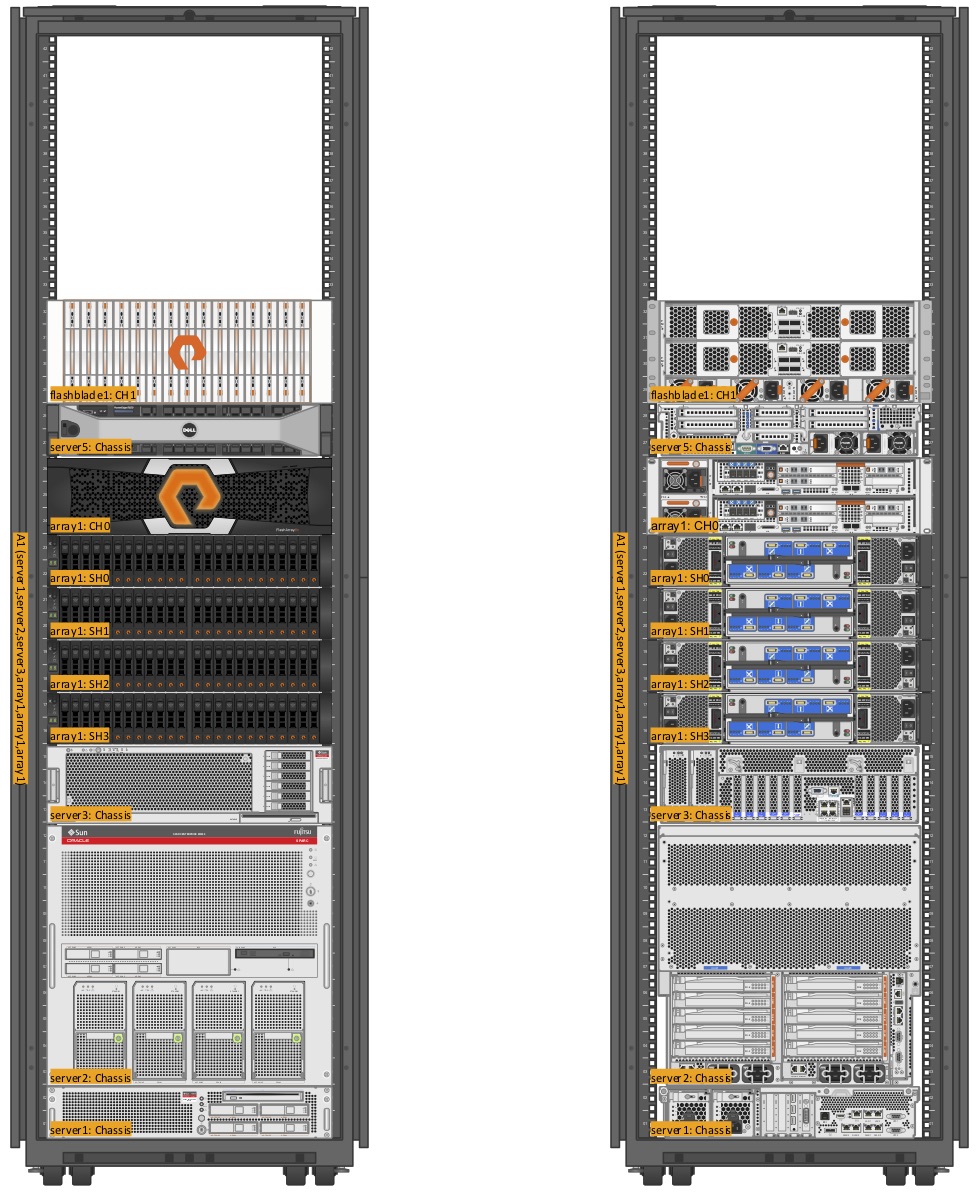
$ git clone https://github.com/lateralblast/devices.git
$ git clone https://github.com/lateralblast/devon.git
$ cd devices
$ git clone https://github.com/lateralblast/visio-stencils.git visio-stencils   # several gigabytes, see Stencils
$ pip install -r requirements.txt
$ python3 devices.py -inputfile input/example.csv -outputfile output/example.png -longracknames -showlabels
The first run is slow while it extracts the stencils it needs; later runs reuse the cache.
One row per physical component (a chassis, a disk shelf, a controller, etc). Rows that share a Hostname belong to the
same host. Rack groups rows into a rack, and Top Rack Unit with Rack Units positions the device in it.
Hostname,Component,Vendor,Architecture,Model,Operating System,Rack,Rack Units,Top Rack Unit,Serial Number,Asset Number,Installed Date,Warranty Exp,Location,Country
server1,Chassis,Oracle,SPARC,M3000,,A1,2,2,12341,,,,,
server2,Chassis,Oracle,SPARC,M5000,,A1,10,12,12342,,,,,
server3,Chassis,Oracle,x86,X2-4,,A1,3,15,12343,,,,,
array1,SH3,Pure,,Disk shelf,,A1,2,17,12344,,,,,
array1,CH0,Pure,,FA-m70r2,,A1,3,26,12348,,,,,
server5,Chassis,Dell,x86,R820,,A1,2,28,12349,,,,,
flashblade1,CH1,Pure,,FlashBlade,,A1,4,32,123450
(input/example.csv has the full example, with a second rack.) Component values matching CH|Chassis are used to
build the long rack name (-longracknames).
devices.py produces the same front and rear rack elevations as devices.ps1 without Windows or Visio. Instead of
driving Visio it uses SVGs extracted from the Visio stencils by devon.py
and composes them into one drawing per rack. The output format is chosen by the output file extension: .svg, .png,
.jpg or .pdf.
- Python 3 and the packages in
requirements.txt(pip install -r requirements.txt): Pillow for JPG output, openpyxl and xlrd for xlsx and xls input, and selenium, which devon.py needs and which runs under the same Python - devon.py, found via
-devon PATH,$DEVONor../devon/devon.py - libvisio (
vss2rawandvss2xhtml),emf2svg-convandrsvg-converton the PATH - The visio-stencils repository (see Stencils)
devon.py is a separate repository. The script looks for it in a devon directory next to the devices directory,
so clone it alongside:
$ cd ..
$ git clone https://github.com/lateralblast/devon.git
$ cd devon
$ pip install -r requirements.txt
$ python3 devon.py --checkconfig
--checkconfig reports which of devon's dependencies (libvisio's vss2raw/vss2xhtml, emf2svg-conv,
rsvg-convert) are missing, and --checkconfig --install tries to install them. If you clone it somewhere else, use
-devon PATH or set the DEVON environment variable.
Switches (python3 devices.py -h lists them all):
-inputfile FILENAMECSV, xls or xlsx file (required)-sheet NAMEworksheet to read from an xls/xlsx file (default: the first)-outputfile FILENAMEoutput file (required unless-rackperfileis used)-longracknamesappend chassis hostnames to the rack names-showlabelsshow ahostname: componenttag on each device and the rack name beside the rack-rackperfilewrite one file per rack into theoutputdirectory-pagelabelsdraw the rack name at the top of each page-stencildir DIRvisio-stencils checkout (defaultvisio-stencilsnext to the script)-cachedir DIRextracted SVG cache (defaultsvg-cachenext to the script)-devon PATHpath to devon.py-nodiscoverdo not search the visio-stencils directory for models with no built-in rule-maxscan Nmost stencils to search per vendor/model when discovering (default 30)-dpi Nresolution for PNG and JPG output (default 150)-verbose,-version
Examples:
$ python3 devices.py -inputfile input/example.csv -outputfile output/example.png -longracknames -showlabels
$ python3 devices.py -inputfile input/example.xlsx -outputfile output/example.pdf -longracknames -showlabels -pagelabels
$ python3 devices.py -inputfile input/example.csv -rackperfile -outputfile x.svg
PDF output is a single file with one page per rack. SVG, PNG and JPG output with several racks gets one file per
rack, named after the output file (example_<rack name>.png). With -rackperfile the files are named after the rack
and the output file only sets the format.
The first time a stencil is needed it is unzipped and split into one SVG per master under svg-cache/ (the large
stencils can take a minute). Each row is then placed in the front and rear rack frame using the same vendor/model rules,
rack unit size (0.175 inches) and Top Rack Unit/Rack Units positioning as the PowerShell script. To pick up a
changed stencil, delete its folder in svg-cache/.
If a row's vendor/model has no built-in rule, or the rule's stencil has no master for it, the script looks in the
vendor's directory of the visio-stencils layout (<first letter>/<vendor>/, with a few aliases such as HP to hpe and
Sun to oracle). It lists the masters in each stencil there, most likely first (for example a model DL380 tries
stencils with DL in their name first, and current stencils before classic ones), and uses the best <model> Front and
<model> Rear/Back masters. The master lists are cached in svg-cache/_index, so only the first search for a vendor
is slow, and the matching stencil is then extracted to SVGs like any other. A model with no match is drawn as a blank
plate and a warning is printed. If a model is found in the wrong stencil, or not at all, use -nodiscover or add a
rule to pick_shape.
Some bezels that use a Visio pattern fill, e.g. the left and right ends of the Pure FlashArray front, come out of libvisio as white with black hexagons rather than a black mesh.
Stencils are put in the visio-stencils subdirectory under a first letter subdirectory and then a vendor
subdirectory, e.g. visio-stencils/d/dell/Dell-Racks.vss (this is the layout of the repository below). Both scripts
extract a stencil from its zip file the first time it is needed.
I'm building a repository of zipped Visio stencils here:
https://github.com/lateralblast/visio-stencils
Warning: this repository is large, several gigabytes in size, so I'd recommend you just copy the ones you need rather than cloning the whole thing.
If you wanted to clone the entire collection:
$ cd devices
$ git clone https://github.com/lateralblast/visio-stencils.git visio-stencils
Currently there is built-in support for the following vendor stencils (the Python version can also search other vendors' stencils, see Stencil discovery):
- Oracle
- Dell
- Pure
Support for other vendors is relatively straightforward to add: inspect the Visio file and look at the naming standard
for front and rear views. Common naming is "Model Front" and "Model Rear". Add the stencil file to the stencil table,
and a case to the vendor/model dispatch, in each script (pick_shape in devices.py).
devices.ps1 builds a Visio document with one page per rack (or one document per rack with -rackperfile).
Originally I used the inbuilt OS application automation of Visio, then I tried VisioPS/Visio module. The inbuilt OS support would not let me set the active sheet so that I could do a rack per sheet in Visio. The VisioPS/Visio PowerShell module would let me set the active page correctly, but the current version does not appear to have the Stencil cmdlets or they have been moved in another Cmdlet and are not documented.
Thus I started using VisioBot3000 which allows me to set the active page and use Stencils:
https://github.com/MikeShepard/VisioBot3000
I have rewritten the script to utilise this PowerShell module.
- Windows OS
- PowerShell
- Visio
- Visio Stencils for vendor products
- Excel (only to read
.xls/.xlsxinput files) - VisioBot3000 PowerShell Module
- Git for Windows, if you want to clone the script and/or stencils
Installing the PowerShell module:
Y:\Code\devices>powershell "Install-Module VisioBot3000"
If you've got an existing Visio PowerShell Module installed, you may need to uninstall it or use the -Clobber flag to overwrite conflicting Cmdlets.
To run the script from the command line you may need to alter the execution policy, by setting it globally or adding the following command line option:
-ExecutionPolicy ByPass
Getting help:
Y:\Code\devices>powershell -ExecutionPolicy ByPass -File devices.ps1 -help
usage: devices.ps1
--help
--version
--inputfile  FILENAME
--outputfile FILENAME
--sheet      NAME (worksheet to read from an xls/xlsx input file, default is the first)
--longracknames
--showlabels
--rackperfile
--pagelabels
Importing a CSV file and creating a Visio diagram:
Y:\Code\devices>powershell -ExecutionPolicy ByPass -File devices.ps1 -inputfile input\example.csv -outputfile output\example.vsd
Excel files (.xls, .xlsx) work the same way. The script uses the installed copy of Excel (via COM) to save the
worksheet as a temporary CSV, and -sheet NAME picks a worksheet:
Y:\Code\devices>powershell -ExecutionPolicy ByPass -File devices.ps1 -inputfile input\example.xlsx -outputfile output\example.vsd
See the example_*.bat files for more combinations of switches.