BoxRFID is a Windows desktop app (Electron) to read and write NFC/RFID tags used by QIDI Box, a multi color System for QIDI Plus 4 and QIDI Q2 3D printers. It lets you set material, color, and manufacturer codes (not yet supported by QIDI Box, maybe in future), read tags, and auto-read when a tag is detected.
- Platform: Windows (Electron)
- Version: 1.2.0
- License: CC BY-NC-SA 4.0
- Write filament data (material, color, manufacturer) to compatible tags
- Read and display tag data
- Auto-read mode when a tag is presented; clears when removed
- Multi language support (DE, EN, FR, ES, PT, ZH)
- Support Import of "officiall_filas_list.cfg" - optional
- Support edit / delete filaments from Filament list and Vendor list
- Uses PC/SC (nfc-pcsc) for reader support (tested with ACR122U)
Version 1.2.0 focuses on even faster startup and robust behavior when no NFC reader/driver is present.
- Zero-block startup: the main window shows quickly even if no NFC reader is connected or no driver is installed
- Lazy NFC initialization: the NFC/PCSC layer is only loaded when needed (read/write/auto-read), so startup no longer depends on PC/SC
- Auto-read enable fails fast (and shows a localized message) when no reader/driver is available
- Connection indicator still works: NFC init is triggered after the UI is visible, so the dot can turn green without risking a headless launch
- Reduced packaged app size by excluding dev-only files from the build output (README, screenshots, etc.)
Version 1.1.0 focuses on stability, startup performance, and proper internationalization.
- Much faster startup (window opens in ~2–3 seconds instead of 20–30 seconds)
- Reliable window opening – app no longer runs headless in the background
- Persistent settings
Selected language, manufacturer usage, and preferences are now reliably restored on next startup - Improved Windows compatibility
Chromium disk cache is redirected to Electron userData to avoid permission issues on locked-down systems
- All NFC and status messages are now fully localized
- No more mixed German/English messages when another language is selected
- Consistent behavior across all supported languages (DE, EN, FR, ES, PT, ZH)
- Native modules are rebuilt correctly for the bundled Electron version
- Improved startup robustness on systems with antivirus or Controlled Folder Access
- ACR122U USB reader/writer (i.e. https://www.amazon.com/ACR122U-Contactless-Reader-Lianshi-Writer/dp/B07DK9GX1N)
- Mifare classic 1K tags (i.e. https://www.amazon.com/BABIQT-Sticker-Classic-Self-Adhesive-Stickers/dp/B0BZRS35CT)
IMPORTANT:
You do not need to compile the code yourself!
Simply download the latest Windows EXE directly from the release page:👉 BoxRFID – Download latest Windows EXE
This release is recommended for all users due to major stability and startup improvements.
BoxRFID binaries are currently not code-signed. On some Windows systems, the first start after downloading may take a bit longer because SmartScreen / Defender / Antivirus scans the file(s).
If you experience a slow first start (or you only see the process in Task Manager for a while), try this:
- Prefer the portable EXE if the installer feels slow on first run
- Save the file locally (e.g. to a dedicated folder like
C:\Tools\BoxRFID) and start it from there - Avoid running directly from the browser “Run/Open” prompt — download first, then launch
- After the first successful start, subsequent starts are usually much faster
- Wait a moment on first run (scan may still be running in the background)
- Try the portable EXE instead of the setup installer (and vice versa)
- Ensure you extracted the app if you downloaded a ZIP (do not run from inside an archive)
- If no NFC reader/driver is installed: the app will still open, but NFC features will show “not connected”
- Curious how it works in practice?
Check out this short YouTube video and see how effortlessly you can switch filament spools using DIY RFID tags with your QIDI Box:
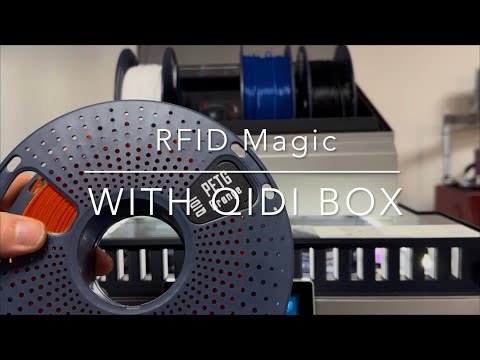
Note: Screenshots may differ slightly from v1.2.0 depending on when they were taken.
- Main Menu

- Read tag Information and Show result

- Write tag Information - ABS and Dark Blue selected - Write successfully

- Setup Language

- Setup Materials

- Setup Manufacturers - only available if in Setup - General activated

- Setup General

This guide will walk you through setting up a complete development environment for BoxRFID on Windows, and building your own EXE from the code.
It is designed for users with little or no prior experience in Node.js or Electron development.
- Operating System: Windows 10 or 11
- Terminal: PowerShell (default on Windows)
- Admin Rights: You may need administrator rights to install software
Open PowerShell as an administrator and run the following commands one by one.
This will install Git (for downloading code) and Node.js LTS (needed to build and run Electron apps):
winget install -e --id Git.Git
winget install -e --id OpenJS.NodeJS.LTS
If you get errors, make sure winget is available, or install the tools manually from their websites.
Clone (download) the source code from GitHub:
git clone https://github.com/TinkerBarn/BoxRFID.git
cd BoxRFIDInstall the required packages using npm (Node Package Manager):
npm installIf you want to customize or regenerate the app icon, place a square PNG (ideally 1024x1024) at assets\source-icon.png, then run:
npm i -D sharp png-to-ico
node tools/generate-icons-from-png.js
If you don't need to change the icon, you can skip this step.
You can test and develop the app before building the EXE:
$env:NODE_ENV="development"
npm run dev
This will start the app in development mode. If you see errors about missing dependencies, double-check you ran npm install.
To compile the app and create the Windows installer and portable EXE, run:
npm run build-winAfter building, you will find the following files in the dist\ folder:
BoxRFID – Filament Tag Manager Setup <version>.exe(Windows installer)BoxRFID – Filament Tag Manager <version>.exe(portable, runs without installation)
- The EXE/installer icon is set in
assets/icon.ico. If you change the icon, rebuild the EXE. - If you have issues with permissions, try running PowerShell as Administrator.
- Some antivirus programs may flag newly built EXE files. This is a common false positive for Electron apps you build yourself.
- If you want to update the code, run
git pullin theBoxRFIDfolder, then repeat the build steps.
- EXE/installer icon comes from electron-builder
build.win.icon→assets/icon.ico - Window/taskbar icon set in
main.js:icon: process.platform === 'win32' ? path.join(__dirname, 'assets', 'icon.ico') : path.join(__dirname, 'assets', 'icon.png')
assets/
  icon.ico
  icon.png
  source-icon.png        # optional input for generator
  tmp-icons/             # ignored
tools/
  generate-icons-from-png.js
main.js
preload.js
index.html
package.json
Creative Commons Attribution-NonCommercial-ShareAlike 4.0 International (CC BY-NC-SA 4.0). For commercial licensing, contact: boxrfid@tinkerbarn.de.