






muse-cli.mp4
A command-line client for your personal muse.ai AI agent: chat from the terminal, automate it with scripts, and manage side chats, feed, goals, ideas, and sessions without opening a browser. It speaks the app's own gateway protocol directly: HTTPS auth, then an encrypted Noise-XX WebSocket to your personal VM.
- Chat from the shell: send a message and get the agent's reply back as JSON.
- Script it: every command prints JSON, so it pipes into
jq, cron jobs, and other AI agents. - Full coverage: named commands for the common tasks, plus a
rawescape hatch for all 258 gateway methods. - Agent-ready: ships an agent skill so coding agents can drive your muse.ai agent for you.
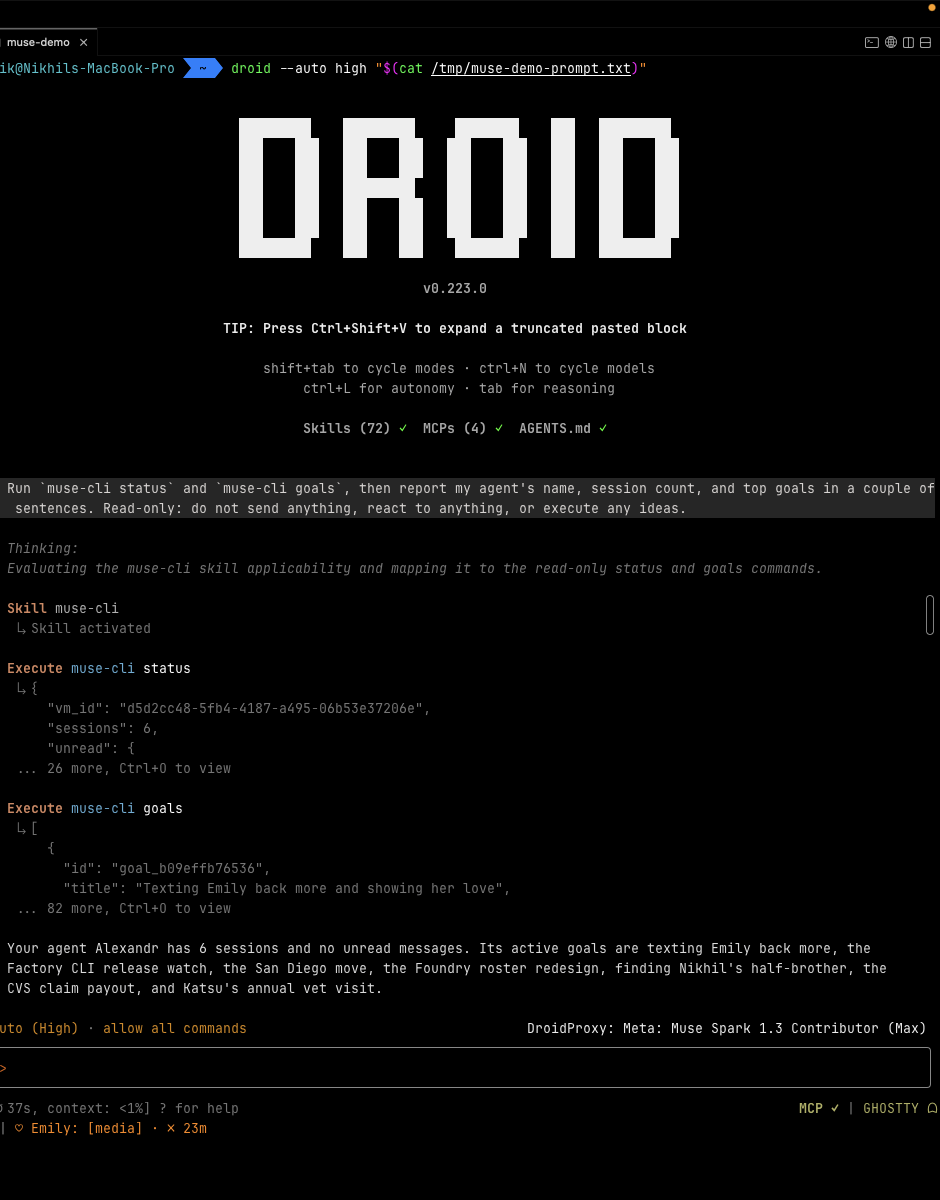
Prompt a coding agent, it activates the muse-cli skill and runs read-only
commands for you. Live session below: a Droid worker runs muse-cli status
and muse-cli goals, then reports back.
uv tool install git+https://github.com/thoitiettxl-cyber/muse-cli.git # or: pipx install git+https://github.com/thoitiettxl-cyber/muse-cli.gitThe command is muse-cli. The name muse belongs to Muse Code on many machines.
Want the agent skill too? The installer sets up the CLI and copies the skill
to ~/.agents/skills/muse-cli:
curl -fsSL https://raw.githubusercontent.com/thoitiettxl-cyber/muse-cli/main/install.sh | bashOn a fresh Debian/Ubuntu (also Fedora, Arch, Alpine) the installer adds missing curl, git and CA certificates with the system package manager (via sudo when not root), installs uv, and puts muse-cli on your PATH for new terminals. No curl yet? Use wget -qO- https://raw.githubusercontent.com/thoitiettxl-cyber/muse-cli/main/install.sh | bash.
Upgrade with muse-cli update. In a terminal it also checks the fork's main branch once a day and, when a newer version exists, prints that command on stderr. It does not upgrade itself. Set MUSE_NO_UPDATE_CHECK=1 to silence the notice. The check stays quiet when output is piped or CI is set. Remove with uv tool uninstall muse-cli.
Logging in is a separate one-time step. Chrome shares its cookies after you turn on remote debugging. Follow Log in once before running any other command.
muse-cli borrows the login you already have in Chrome, saves those cookies
to ~/.config/muse-cli/cookies.txt (mode 600, only your user can read it),
and after that talks to muse.ai directly. Access tokens are fetched fresh
on every command. When a command later says the cookies expired, repeat this
section.
Do the steps in order. Each one checks itself before you continue.
auth export uses agent-browser
to read Chrome's cookies. That package comes from npm, so you need Node.js first.
node --version    # if this fails, install Node.js LTS from https://nodejs.org
                  # and open a new terminal
npm i -g agent-browser
agent-browser --version
npm i -g needs permission to write to npm's global bin directory. If it
errors with EACCES, pick one and use it from then on: configure an
npm prefix you own,
or run the install with the same rights you use for other global npm tools.
Then check command -v agent-browser prints a path.
Open Google Chrome, the same profile you use for muse.ai. Paste this in the address bar:
chrome://inspect/#remote-debugging
Turn on remote debugging. The checkbox reads Allow remote debugging for this browser instance. Leave Chrome open.
Turn this on while Chrome is already open and muse.ai is loaded. The export can see that window only after the switch is on. The page is in Chrome 144 and newer.
Stay in this window. Starting a second Chrome with
--remote-debugging-port opens a different profile, and that profile does
not have your muse.ai login.
In that same Chrome window, open https://muse.ai/ and log in. Leave the tab open. The exporter reads whichever tab is active, so the muse.ai tab has to be the one in front when you run the next command.
muse-cli auth exportChrome may ask to allow the debugging connection. Click Allow. If the command already failed, run it again after you click Allow.
Success looks like this (the count varies):
saved 12 muse.ai cookies to /home/you/.config/muse-cli/cookies.txt
The command prints the fix on the failure itself. These are the ones it recognizes:
| What it says | What to do |
|---|---|
| No running Chrome / remote debugging | The switch in step 2 is off. Turn it on in the Chrome you already have open, then run the command again. |
| No muse.ai tab | Step 3. Open https://muse.ai/ in that same window and leave the tab open. |
No hatch_sess |
The tab is open and you are logged out. Log in, then export again. The cookies file already on disk is left as it was. |
agent-browser is not installed |
Step 1. node --version, then npm i -g agent-browser, then a new terminal. |
| Daemon already running | A previous attempt is stuck. agent-browser close, then muse-cli auth export. |
muse-cli statusYou get JSON with your VM id, how many chats you have, the unread count, and your identity. That means install and login both worked.
Use this when you don't have Node, or you don't want remote debugging on.
- In Chrome, open https://muse.ai/ and log in.
- Open DevTools (F12, or Ctrl+Shift+I) → Application → Cookies →
https://muse.ai. - Copy the cookies onto one line.
hatch_sesshas to be there. Separate cookies with;(semicolon, space). A Netscape cookie jar (what curl writes) and a JSON object such as{"hatch_sess": "..."}also work.
mkdir -p ~/.config/muse-cli
printf '%s\n' 'hatch_sess=the-value-from-devtools; other_cookie=other_value' > ~/.config/muse-cli/cookies.txt
chmod 600 ~/.config/muse-cli/cookies.txt
muse-cli statusmuse-cli # interactive chat (same as `muse-cli chat`)
muse-cli threads # main chat + side chats
muse-cli history --limit 5 # recent messages
muse-cli history --thread <session-id> --limit 5 # one side chat
muse-cli send "summarize my unread" --wait 120 # send, wait until the turn is done (max 120s)
muse-cli send "do X" --until-done # block until done; exits 0/2/4/124
muse-cli wait --after-seq N [--thread ID] # block until the turn ends (no polling)
muse-cli approvals ; muse-cli approve ID --always ; muse-cli deny ID
muse-cli approve --all --always # approve everything pending, forever
muse-cli auto-approve on|off|status # wait/send approve approvals forever and keep going
muse-cli auto-approve once on|off|status # fallback: no-forever approvals get allow_once (default off)
muse-cli --profile work status # another login; see Profiles below
muse-cli watch --timeout 60 # tail live agent events
muse-cli usage # plan: weekly limit % used, reset, bonus tokens
muse-cli invite # invite code, uses left, rewards (--json/--raw; --create makes one)
muse-cli redeem <CODE> # redeem a friend's code (48h after joining only)
muse-cli usage --json # same, as JSON (--raw: full server object)
muse-cli files --limit 20 # images/videos in recent messages
muse-cli download <seq|message-id|sandbox://...> -o ./out # save agent-made files
muse-cli history --limit 3 --download ./out # save files from these messages
muse-cli send "make a cat video" --wait 300 --download ./out
muse-cli watch --thread <session-id> # tail one side chat
muse-cli feed --limit 5
muse-cli feed-react <unit-id> love
muse-cli goals
muse-cli ideas
muse-cli idea-exec <idea-id> # agent acts on the idea
muse-cli session-start --title "trip planning" # new side chat
muse-cli session-rename <id> "new title"
muse-cli session-archive <id> # also: pin, unpin, unarchive, delete
muse-cli seen <thread-id>
muse-cli wake
muse-cli stop [--thread <session-id>] # stop Muse's current turn
muse-cli telegram setup # Telegram bot; see Telegram bot below
muse-cli fs ls [PATH] [-l] [-a] [--json] # System Files (agent home); "" or / is the root
muse-cli fs tree memory --depth 3 # recursive listing
muse-cli fs stat MEMORY.md
muse-cli fs cat config/home.yaml # text to stdout (binary refused unless --binary)
muse-cli fs get workspace/imagine_media/x.mp4 -o ./out # download (-r for folders)
muse-cli fs find hello # search by name substring
muse-cli fs put ./notes.md docs/notes.md # upload (-r for folders, -n no-clobber)
echo hi | muse-cli fs write data/hi.txt # stdin -> file (--append)
muse-cli fs edit docs/notes.md --replace OLD NEW # or no flags: opens $EDITOR
muse-cli fs mkdir data/new ; muse-cli fs mv a b [-f] ; muse-cli fs rm PATH [-r] --yes
muse-cli raw <method> --body '{}' # escape hatch: any of 258 gateway methodsThe interactive chat prints plain text, one message per line, so it works well
with screen readers. It resumes the conversation you used last; type /help
inside it for /chats, /open N, /main, /new, /history, and /login.
Every other command prints JSON. Your VM is auto-discovered from your session, and a random device id is generated on first run.
Pipe it into other tools:
muse-cli send "what's on my calendar today?" | jq -r .reply.textAgents: never poll history in a sleep loop; use send --until-done or a background wait. Exit codes: 0 done, 2 failed, 4 needs approval/answer (incl. a plain-text question in the final reply; with muse-cli auto-approve on, MUSE_AUTO_APPROVE=always or --auto-approve, approvals are decided with allow_always, Muse's "Always allow" choice, listed in auto_approved, and the wait goes on; when the separate fallback toggle is on (muse-cli auto-approve once on, MUSE_AUTO_ALLOW_ONCE=on or --auto-allow-once, default off), an approval that offers no forever option is decided with allow_once instead, for every kind, and the real decision is recorded in auto_approved), 124 timeout; always read final_text; send exits 5 if delivery is not acked. wait keeps a heartbeat on its connection (every 25 s when idle), reconnects and resubscribes after a silent drop (each wait-path connect capped at 30 s on the CLI wait path only — the Telegram follower uses the 60 s default cap; a reconnect storm switches to one bounded state check after 30 s), and checks the turn state on the server on a cadence, not only when a gap is suspected: every 60 s an unconditional safety-net state check runs on a separate short subscription (8 s budget) even on a healthy stream, and every 20 s without scoped progress the stream is ended and resubscribed, which replays the current state and re-settles (a mid-turn state re-read, not a no-op), so a turn that ended during a gap is reported at once with its final replies; it prints to stderr only after about a minute without Muse. A live terminal after running ends a turn at once with no history proof (a replayed completed or suspect terminal needs history proof); interrupted after running exits 2 with no history proof; cancelled/canceled are retained from the pre-existing cancel flow, not live-measured, and a standalone wait (no --after-seq) started after a cancel exits 2 (new in 0.6.1; 0.6.0 returned 124): the replayed interrupted is accepted only when the boundary was read from history and no user message is newer than it. An explicit --after-seq wait (and send --wait, the Telegram bot) never treats a replayed, older cancel as failure; it keeps waiting (124 at its timeout). Approvals carry no session id, so auto-approve may decide an approval Muse did not scope to this session.
Keep more than one muse.ai login side by side. Each profile has its own
cookies.txt, config.json (auto-approve and other settings) and chat.json.
default(no flag, no env var) is the original location,~/.config/muse-cli/. Nothing there moves.- A named profile lives in
~/.config/muse-cli/profiles/NAME/(folder mode 700, cookies mode 600). Names are letters, digits,.,-and_, not starting or ending with.. - Pick one with
--profile NAMEbefore the command, orMUSE_CLI_PROFILE=NAME. The flag wins over the env var. A new profile starts with fresh-install defaults (auto-approve off).
muse-cli --profile work auth export              # save a second login into profiles/work
muse-cli --profile work status
MUSE_CLI_PROFILE=work muse-cli send "hello" --until-done
muse-cli --profile work auto-approve on          # settings are per profile
muse-cli auth list                               # profiles, active one (*), cookies or not; offline
muse-cli auth list --jsonRun your Muse entirely from Telegram: chat (replies stream into one message),
answer Muse's questions with buttons, send photos and files, switch chats,
approve, browse System Files, and more. muse-cli telegram talks to the
Telegram Bot API directly (long polling, no webhook, no extra dependency) and
uses the active profile's muse.ai login.
1. Create a bot. In Telegram, open @BotFather,
send /newbot, pick a name and a username, and copy the token it gives you
(123456789:AA...). Keep it secret.
2. Save the token and pair your account (on the machine that will run the bot):
muse-cli telegram setup # paste the token at the hidden promptThe token is never a command-line argument; you can also pipe it:
muse-cli telegram setup < token.txt. Setup checks the token, then prints a
code: open the bot link it shows and send /start CODE. That Telegram account
becomes the owner and the only allowed user. Add more user ids with
--allow USER_ID. Everything is saved in telegram.json (mode 600) in the
active profile's folder (~/.config/muse-cli/ or
~/.config/muse-cli/profiles/NAME/). Use --profile NAME to bridge another login.
3. Run it as a service (systemd, Restart=always):
muse-cli telegram install-service          # as root: /etc/systemd/system/muse-telegram.service
muse-cli telegram install-service --user   # or a systemd --user unit
muse-cli telegram install-service --dry-run   # just print the unit
muse-cli telegram status                   # config, allowed users, token check, service state
journalctl -u muse-telegram -f             # logs
Or run it in a terminal: muse-cli telegram run. With --profile NAME the
unit is muse-telegram-NAME.service and runs muse-cli --profile NAME telegram run.
Using it. Type to talk to Muse in the current conversation (main chat by
default; each Telegram chat remembers its own). Each message gets one bot
message: while Muse works it shows the same live status line as the Muse app (e.g. "🦆 Updating plan")
plus the elapsed time; the reply then streams into the same
message (no separate "finished" ping), long replies are split, and very long ones or big code blocks arrive
as a .md/.txt file. When Muse asks something, its options (or Yes / No /
Go ahead) show up as buttons; tap one or just type the answer. Photos and
files you send are saved to System Files under telegram-inbox/ and Muse is
told the path (with your caption). Files Muse makes or shows (generated images, videos, audio, other files) are sent back in order with the text: images as photos, videos/audio as playable media, the rest as documents, full size as Muse stored them. A file goes out the moment Muse shows it, mid-turn: the text before it stays above it and the rest of the reply continues in a new message below. Messages
sent while Muse is busy are queued; before saying so, the bot re-checks Muse's
real state on the server and sends right away if Muse is idle. A turn whose
live stream goes quiet (or says Muse is idle without a turn end) is re-checked
against the server, so it never ticks forever. The service log
(journalctl -u muse-telegram) has one line per queue/turn start/turn end
with the outcome, plus a timing line per turn (seconds since your message
arrived, per phase: delivered, first_status, media_sent, turn_end,
final_edit, …); messages appear only as a short prefix. The bot keeps one
warm, multiplexed connection to Muse (heartbeat every 25 s, reconnected
transparently: a drop is not reported, running turns and background chats
resubscribe and catch up from history; only an outage longer than a minute
gets one "Can't reach Muse" message and one "Reconnected" when it is back) and warm HTTPS connections to Telegram, so its own overhead per
hop is about 0.1 s.
| Command | What it does |
|---|---|
/help, /start |
command overview |
/status |
what Muse is doing now, identity, VM, profile, auto-approve |
/stop |
stop Muse's current turn (the app's Stop button, chat.cancel) |
/chats |
your side chats as buttons (paginated); tap to open |
/main, /new [title] |
back to the main chat / start a side chat |
/history [N], /unread |
last N messages here / unread counts |
/rename <title>, /pin, /unpin, /archive, /unarchive, /delete |
manage the current side chat (/delete asks first) |
/approvals |
pending approvals with Always allow / Deny buttons |
/autoapprove on|off|status |
default on: every approval gets Muse's forever choice (allow_always) so Muse never blocks |
/autoapprove once on|off|status |
default off: approvals with no forever option fall back to allow_once when auto-approve is on. This is the bot's own setting (in telegram-state.json); muse-cli auto-approve once changes only the CLI's wait/send. Approvals that still can't be decided come with buttons |
/watch on|off |
forward live tool/progress events (batched) |
/files |
recent files Muse made; tap to download |
/fs ls|tree|cat|get|find|stat|mkdir|mv|rm … |
System Files (rm asks first; long cat comes as a file) |
/feed, /goals, /goal <id>, /ideas |
feed, goals, idea cards (each with an Execute button) |
/usage, /wake |
plan usage / wake the VM |
/profile |
show and switch muse-cli profiles (owner) |
/login |
send new muse.ai cookies (file or hatch_sess=… line) when they expire (owner) |
/update |
run the same upgrade as muse-cli update, then restart the bot (owner) |
/raw <method> [json] |
any gateway method; path params in {"_params": {...}} (owner) |
In the background the bot also forwards Muse messages that arrive outside a turn it started (scheduled work, messages sent from the web app), new approvals when auto-approve is off, a "done" ping for long turns, and a one-time notice when the muse.ai cookies expire.
Security: updates from anyone not on the allowlist are ignored without a
reply, the token is never logged, and network errors back off and retry.
muse-cli stop [--thread ID] is the same stop from the terminal.

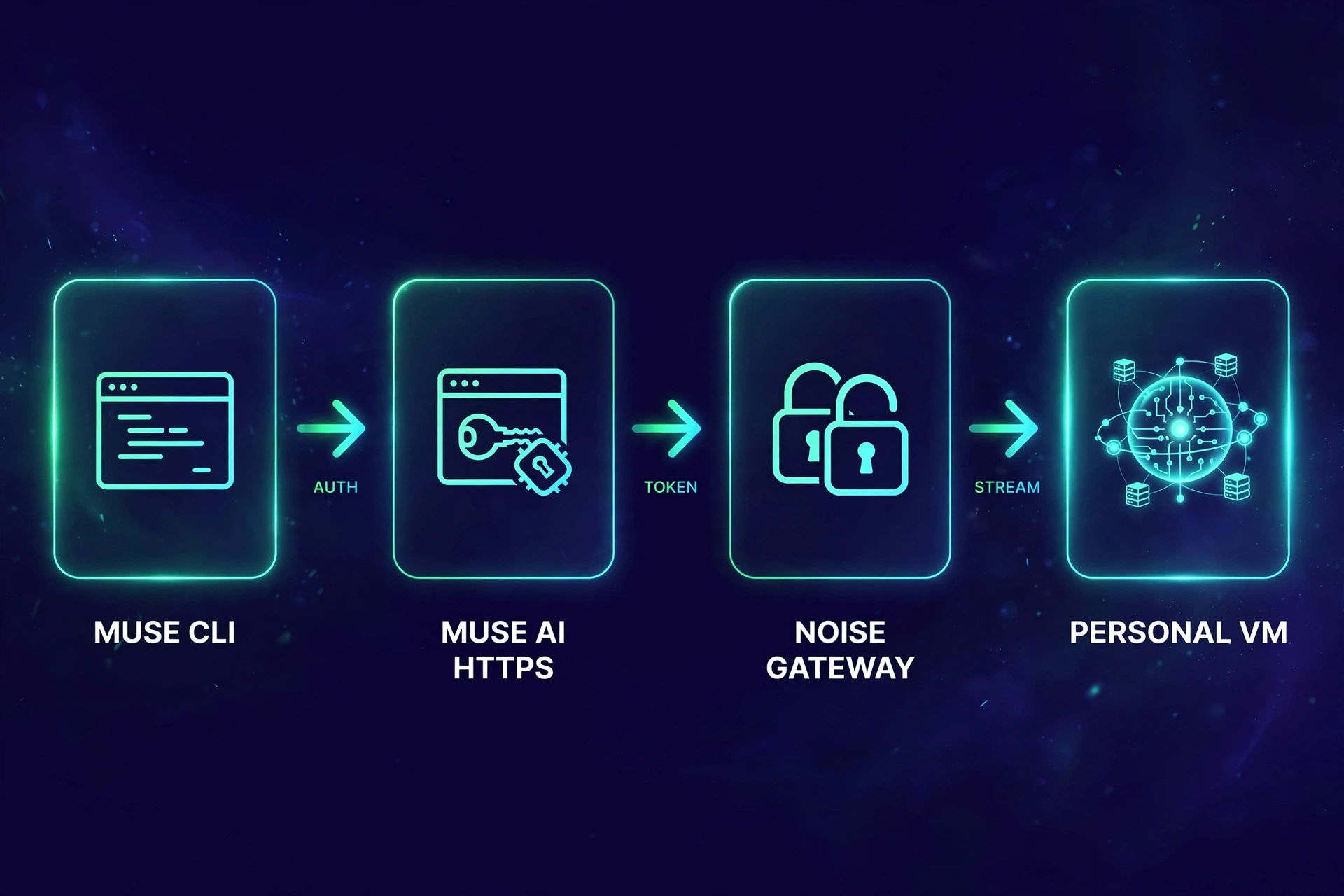
See docs/PROTOCOL.md for the full protocol notes, including the method table and the server quirks found during reverse engineering.
| Resource | Description |
|---|---|
| skills/muse-cli/SKILL.md | Agent skill: install check, auth setup, command reference |
| docs/PROTOCOL.md | Gateway protocol reference: auth chain, Noise transport, framing, method quirks |
| routes.json | All 258 gateway methods with paths and services |
muse-cli raw --help |
Escape hatch for calling any gateway method directly |
git clone https://github.com/thoitiettxl-cyber/muse-cli.git
cd muse-cli
uv run muse-cli --help
uv run python -m unittest discover -s tests   # unit tests (no network)
muse-cli/
assets/ README artwork (generated with Muse Image)
docs/PROTOCOL.md protocol reference for re-derivation
skills/muse-cli/ agent skill
src/muse_cli/
cli.py argument parsing and all commands
gateway.py gateway client (auth, Noise transport, subscriptions)
conn.py shared warm connection: heartbeat, reconnect, retries
routes.json 258 gateway methods extracted from the web client
desc0.bin protobuf descriptors for the wire framing
desc1.bin
install.sh CLI + skill installer
pyproject.toml
- Login is the Log in once section above. Cookies live at
~/.config/muse-cli/cookies.txt(mode 600), or in~/.config/muse-cli/profiles/NAME/for a named profile. Access and gateway tokens are fetched fresh on every run. auth exportreads those cookies from Google Chrome through agent-browser. Chrome has to be open, with remote debugging on (chrome://inspect/#remote-debugging) and a logged-in muse.ai tab in front.- Respect muse.ai's terms and rate limits. Internal APIs are unversioned and can change; if calls fail, re-derive from a fresh app bundle.
Issues and PRs welcome. If the protocol drifts, the most useful contribution is a note of which method broke and the new server error text.
MIT. See LICENSE.