Tutorials Annotation
Use Annotation to apply one of the codes in a Codebook to each source row, either directly or with predictions from a configured AI provider.
-
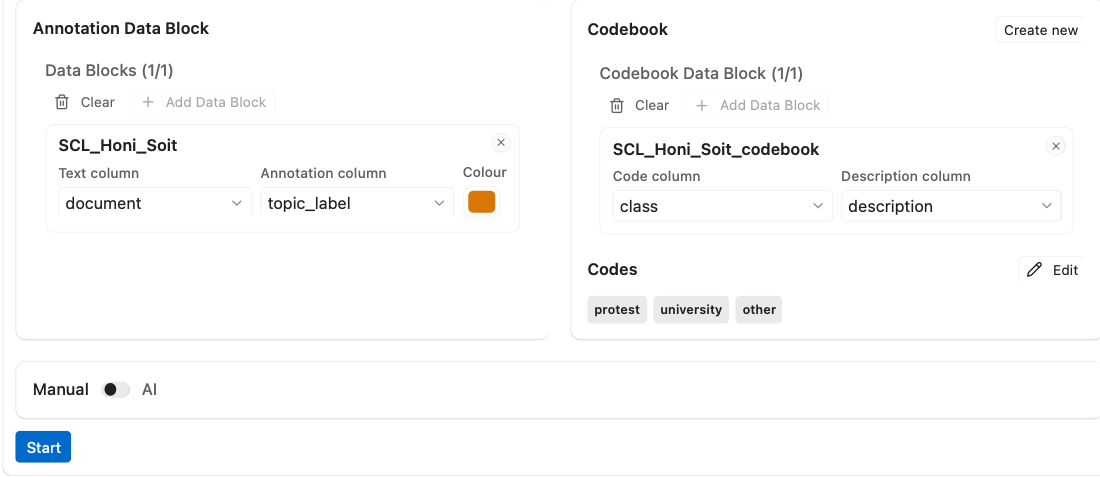
Under Annotation Data Block, add one Data Block and choose the text column.
-
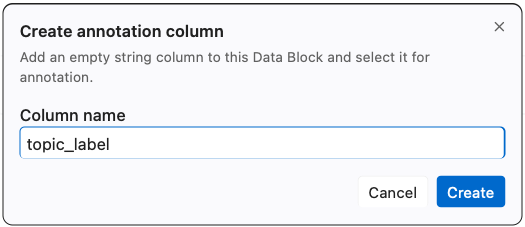
Under Annotation column, select an existing text column, or choose Start new annotation and name a new, empty column. This is an immediate Data Block Edit.
-
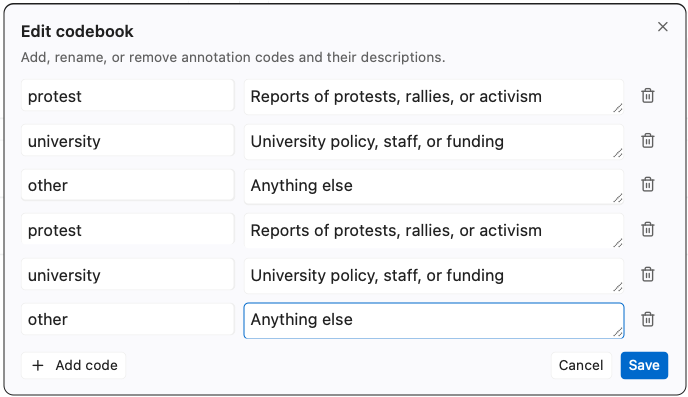
Under Codebook, add a Data Block and map its code and description columns. Use Create new when you need an empty Codebook, then click Edit beside Codes to add, rename, or remove codes and their descriptions before labelling.
-
Use the Manual / AI switch to choose a mode. The source and Codebook are shared between both modes.
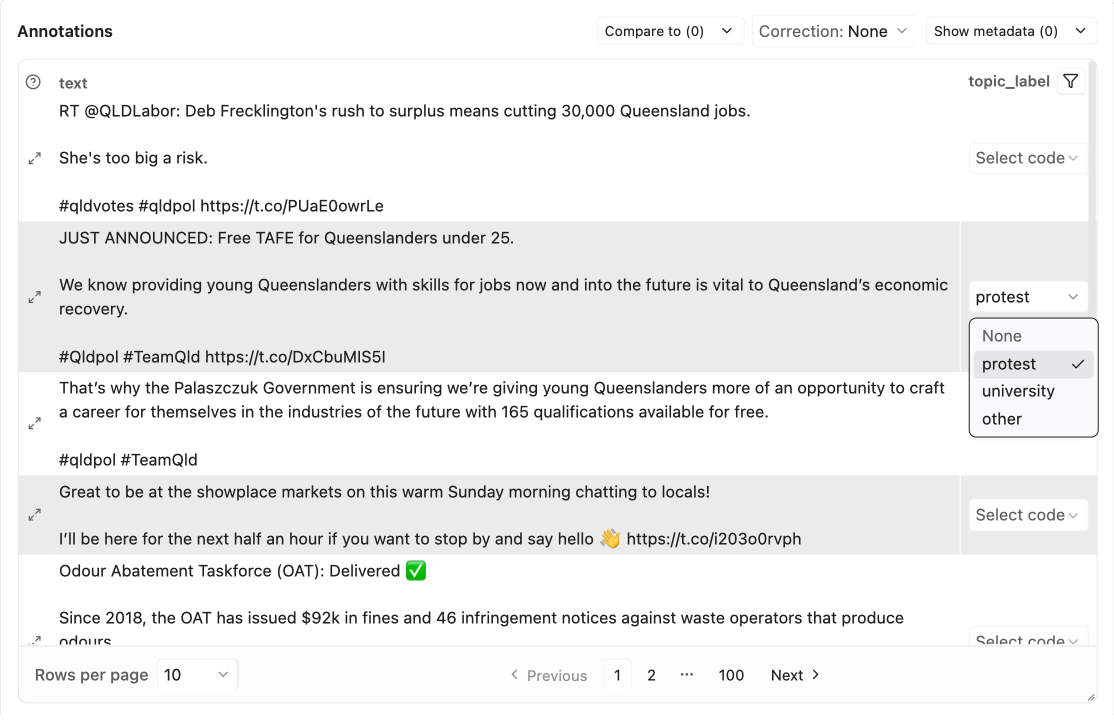
Choose Start to open the annotation table. Select a Codebook value for each row from its Select code list; each change is written directly to the annotation column as a Data Block Edit. Start captures the source, annotation column, Codebook mapping, and table inputs. You can edit the setup as the draft for the next table without changing the open table. Choose Close even if that draft is incomplete; the next Start captures the new setup. Switching modes hides but does not rewrite the open Manual snapshot.
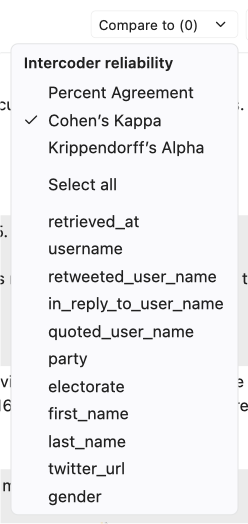
Use Compare to to add another coder or model. Each comparison starts masked
as ••• so you can code without seeing how individual rows were coded. Its
header always shows the reliability score (hover or focus it for the confusion
matrix) and the row-filter menu; reveal the column from the eye button to show
its values and difference colours. Removing the filtered column clears the
filter; hiding it does not. Reliability statistics summarise agreement but do
not explain why labels differ. Choose the statistic at the top of the Compare
to list: Percent Agreement, Cohen's Kappa (the default), or
Krippendorff's Alpha.
The funnel button in the annotation column header and in each comparison header opens a filter menu with two independent conditions: Differs and a value radio (All rows, Has value, Empty). On a comparison column, Differs keeps rows whose label differs from the annotation column; on the annotation column it keeps rows that differ from at least one selected comparison column. Conditions combine, so Differs with Has value narrows further, while Empty greys out Differs because an empty cell never differs. Only one column carries a filter at a time; setting a filter on another column replaces it. Filtered rows and counts are calculated before server pagination. Preview has no row filter because its rows are chosen by the AI request.

A cell counts as empty when it is blank or holds a value that is not a
code in the Codebook (for example P instead of promise, or a date pasted by
accident). Such values are still displayed, in muted italics, but they never
count as differences, never contribute to reliability, and match Empty
rather than Has value. Matching is exact after trimming spaces; Promise
is not promise. Without a Codebook only the blank rule applies.
The table fills the space below the parameters, so dragging the bar between the parameters and the results shows more or fewer rows. To set the table's own height, drag its bottom-right corner; double-click the corner to let it fill the space again. The height is shared by Manual, Preview, and Review, and the table scrolls inside its frame when a page does not fit.
Compare to and Show metadata are exclusive roles: a selected column is disabled in the other menu, and Select all skips disabled columns. The active correction column appears in neither menu. Add a correction column when you want reviewed decisions kept separately, and use metadata columns to retain useful source context in the table.
Long metadata values wrap within their column. To read a whole row, select the View row button (the expand icon, View the whole row) at the start of the row in the Manual, Preview, and Review tables. It opens Row Details with the full text and every visible column in table order: the annotation (or the predicted label beside the existing annotation), any correction, Compare to columns, and metadata. Comparison values stay hidden until you reveal that column, and the viewer is read-only; use Previous and Next to move between rows.
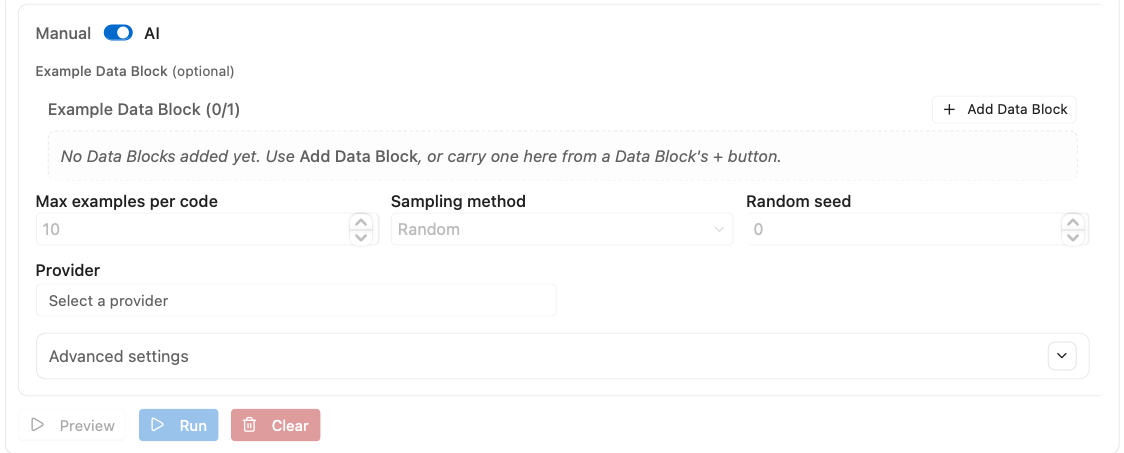
Choose a Provider (a connection you set up) and a Model; both are always shown above Advanced settings. Provider credentials stay in Settings and are attached only when the request is sent. Create or edit connections under Settings → AI. API keys are optional when saving, but a built-in provider marked Needs API key cannot list models, Preview, or Run until you add one. Custom endpoints may be keyless. Editing a key updates future requests; a Run already queued or running keeps the key captured when it was submitted. An Example Data Block is optional; if used, choose both its text column and an existing annotation column containing reviewed labels. Set Max examples per code, then choose Random, First N, or Last N. Random sampling also accepts a nonnegative seed and defaults to 0. The same Data Block snapshot, maximum, method, and seed produce the same per-code subset throughout one Analysis; groups with fewer examples contribute every usable row.
Advanced settings include the instruction prompt, the settings for the selected provider, and the Run settings. Each provider's settings offer Thinking (the model thinks step by step before it answers: slower, but often more accurate) and, where the model uses it, Temperature (lower gives more consistent answers). Anthropic has no temperature setting. Below them, the Run settings apply to every provider: Which rows to annotate (Annotate all rows again, or Only rows without an annotation), Rows per request (how many rows go to the model at once), and Retries if a request fails. Defaults are a good starting point. Change one setting deliberately, because provider capability, cost, latency, and repeatability vary by model.
Choose Preview to see predicted labels for a sample of rows without writing to the annotation column. Page through the predictions, compare them with existing labels, add corrections if useful, then revise the Codebook, examples, model, or settings when the errors show a pattern. Preview waits as long as the provider allows; choose Stop when you no longer want to wait. After a Preview, the button turns on again when you change a setting. See How Preview, Run and Clear work.
Choose Run only after Preview is satisfactory. Run uses the same data and settings as that Preview and writes labels to the selected annotation column. The Review table reflects the current Data Block and supports the same hidden-first comparisons, row filters, reliability, metadata, resizable frame, and correction controls. A reviewed correction column can also be selected as the Example annotation column for a later run.
A provider-wide failure is shown in Annotation and Tasks and writes no labels. When only individual rows cannot fit the provider context or produce a valid response, successful rows are published and a warning reports failed rows and batches. Failed rows keep their existing values in Annotate all rows again and remain blank in Only rows without an annotation; a successful explicit empty prediction may still clear a value.
Clear removes the tab's Preview and Run results; it does not undo labels already written to the Data Block. Use Undo in the Data Editor to reverse the latest manual edit, AI write, or column creation. Undo history lasts only until the Project is closed.
Settings are locked while Preview or Run is working. After a failure or a stop, you can edit the settings again, but Preview and Run stay off until you choose Clear. Tables on screen keep the settings of the Preview, Run or Start that made them while you edit the next setup. See How Preview, Run and Clear work.
Before using labels downstream, sample every code, inspect uncertain or costly errors, and record who or what produced the labels. Treat AI predictions and agreement scores as evidence for review rather than proof of correctness.