Tutorials Topic Modeling
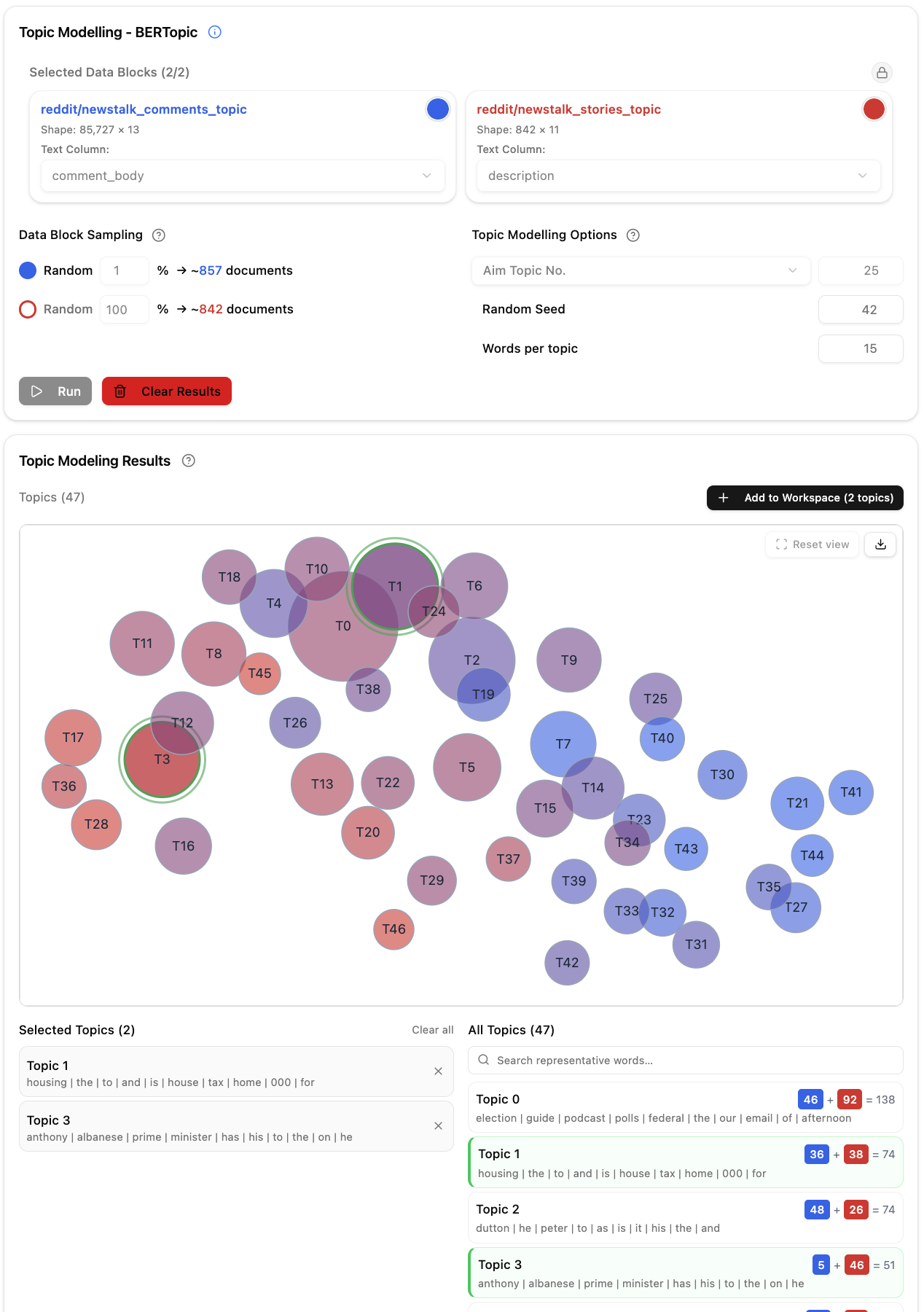
Topic modelling discovers recurring themes in a collection. Wordflow divides each document into Topic Segments, embeds those segments, groups similar segments, and rolls their topic assignments back up to each source document.
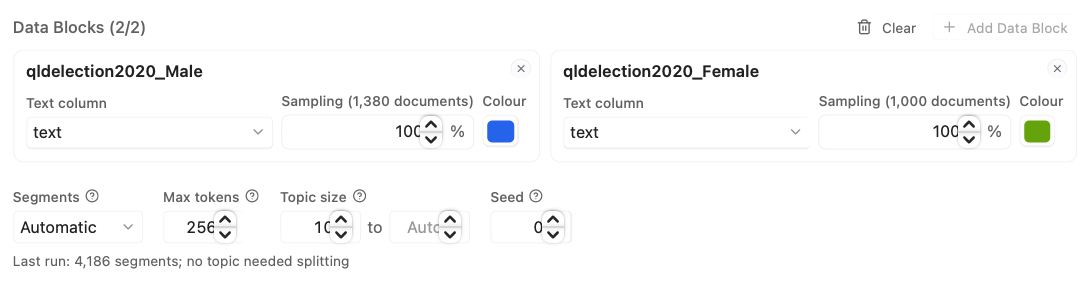
Choose one or two Data Blocks and select the text column for each. A run on two Data Blocks fits one shared model and shows how each topic is distributed between the two corpora.
Each Data Block has an independent sampling percentage. The default is 100%. Lower sampling makes exploratory runs faster but can hide rare themes or make small topics less stable. The label reports the effective document count, for example Sampling (1,380 documents). The sample uses the Seed setting, so the same Seed and percentage always pick the same documents, whichever order the Data Blocks are in. The Colour square sets the Data Block's colour in the bubble chart and topic lists.
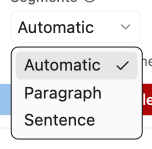
This setting controls which spans become Topic Segments. The same method is used for every selected Data Block.
| Method | Starting unit | Oversized unit |
|---|---|---|
| Automatic | Each paragraph: a blank-line block when the text has blank lines, otherwise each non-empty line | Split into its sentences, then as below |
| Paragraph | Each trimmed, non-empty line, treated as a paragraph | Split into its sentences, then as below |
| Sentence | Each Unicode UAX #29 sentence | Split as below |
A unit that fits the token cap is always one segment; short units are never merged together. A sentence that is still too long is split at the clause punctuation (commas, semicolons, colons, dashes) nearest its middle, repeatedly, so the pieces stay similar in size and end at natural pauses. Only a stretch with no usable punctuation is cut at the token cap, and a leftover of fewer than four tokens from such a cut is dropped. Segments with no letters or digits (a stray quotation mark or full stop) are dropped in every mode.
For text whose paragraphs are separated by single line breaks, Automatic and Paragraph produce the same segments. They differ for text that uses blank lines between paragraphs: Automatic keeps each blank-line block together, while Paragraph starts a new segment at every line break. Sentence uses a language-independent Unicode boundary algorithm, so abbreviations may occasionally form a short segment.
Sets the maximum size of a Topic Segment in model tokens. The default is 256 and the allowed range is 32–256. Tokens may be complete words or parts of words, and the cap includes special tokens added by the embedding model. A smaller cap gives more local observations; a larger cap gives each observation more context.
All modes split over-cap text into non-overlapping source spans. Apart from the tiny leftovers and letterless segments described above, no text is discarded. Very small caps (such as 32 tokens) produce many short, fragment-like segments, which can make the number of topics unstable; 128–256 tokens usually gives more stable topics.
Sets the smallest number of Topic Segments a Topic can have. The default is 10 and the minimum is 2. A smaller value finds more, smaller Topics, which may be noisier; a larger value needs more segments behind each Topic. Changing this value needs a new Run.
Limits the largest number of Topic Segments one Topic can hold. Topic size counts segments, not documents. Leave it empty for Auto: sometimes one huge Topic swallows most of the corpus, especially with short segments, so Auto steps in only when one Topic holds more than half of all segments. It then splits that Topic into smaller ones, and keeps the split only if most of its segments still belong to a Topic afterwards. A fixed value must be larger than Min topic size. The number of segments is only known after a run, so after each run the field shows the segment count and whether any Topic was split, to help you choose a fixed value.
Controls stochastic dimensionality reduction. The default is 0. Keep the same seed to reproduce a configuration, or compare several seeds to assess topic stability. The same seed also picks each Data Block's sample.
Choose Run. The native pipeline constructs Topic Segments, embeds them with the configured sentence-transformer model, reduces the embeddings with PaCMAP, clusters them with HDBSCAN, calculates c-TF-IDF representative words, and saves the Result. The first run can be slower while model resources are loaded or downloaded.
Every mode uses this same downstream pipeline. Each Topic Segment is one equal clustering observation. When assignments are rolled back to documents, each segment is weighted by the Unicode-character length of its owned source span. Outlier coverage remains part of normalised Topic Coverage and can be dominant.
Settings are locked while Run works. After it finishes, Run turns on again only when you change a setting that affects the topics. Words per topic, stop words, search, selection, and chart controls only change what is shown, so they do not turn Run on. After a failure or a stop, Run stays off until you choose Clear; your segmentation method, token cap, and Min topic size stay selected. See How Preview, Run and Clear work.
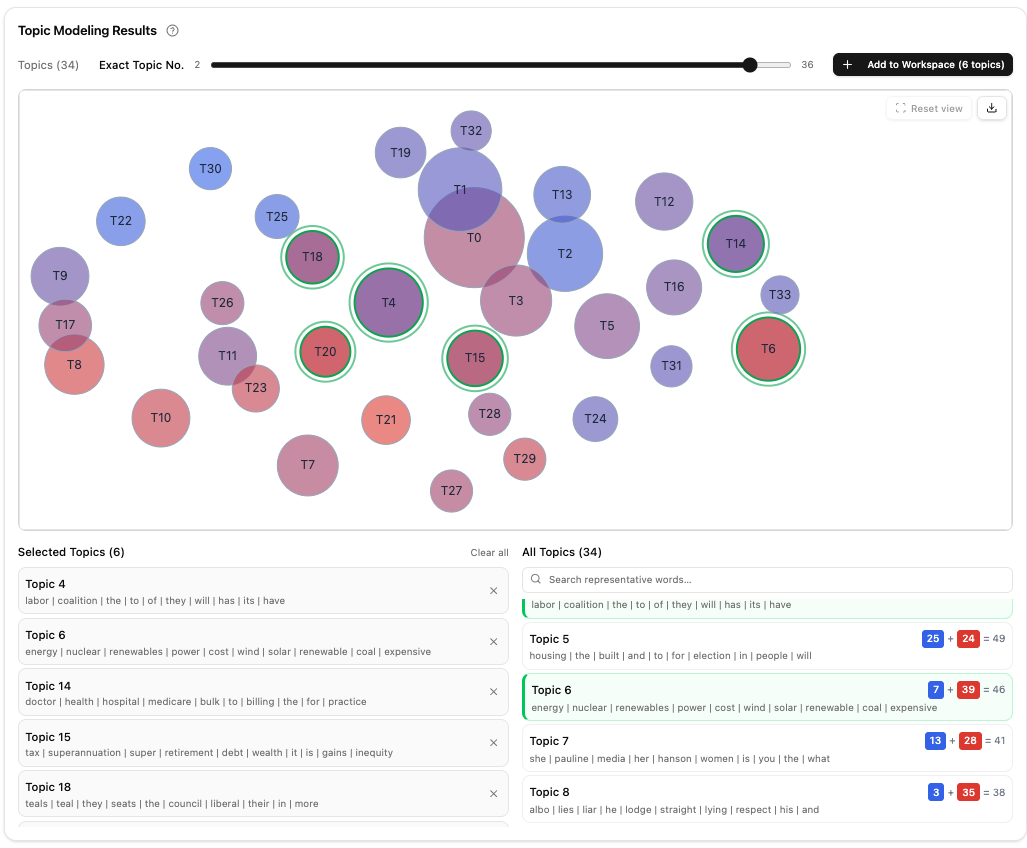
The Result settings row below the bubble chart holds Topics, Per document, Words, the stop word controls, and, for a single-corpus result, Colour by, with Add to Project at its right. Question-mark icons beside some of these controls give a short explanation. Below it, the Selected Topics and All Topics lists each have their own resize grip, like the chart itself.

The Result starts with the number of Topics the run found. Use Number of topics to merge them, down to one Topic, without running the analysis again. Segments that fit no Topic are marked No topic; they stay as they are and do not count toward the number shown. Results with zero or one real Topic show a fixed disabled control.
The lower bound appears to the left of the slider. Change the topic count with either the slider or the number field on its right; both stay synchronised. Wordflow updates the topics once you finish changing either control. The current chart remains visible with Updating topics… until the new representative words, coordinates, sizes, and document assignments arrive. A failed request restores the previous value. Changing the count clears Topic selection and chart hover or zoom state. Search, stop words, and Words per topic remain in place.
A changed topic count is remembered with the result. If a lower cluster count cannot support the current Top topics per row, Wordflow sends one update with that value clamped to the new count. Running again starts from the natural count and Top 2. Export and Add to Project use the topics on screen and are unavailable while an update is pending.
Top topics per document controls how many of each source row's strongest positive real-topic shares contribute to bubble counts. The default is 2. Topic −1 and zero shares never count. If several Topics tie at the cutoff, all tied Topics count, so one row may contribute to more than this number and to several bubbles. The question-mark tooltip beside the control summarises this counting behaviour.
Enter a value and press Enter or leave the input to request one update. Partial input and the already-applied value make no request. Changing only this value updates bubble sizes, corpus composition, Topic lists, tooltip counts, CSV, and publication membership without moving the Topic layout or clearing selection, search, lasso filters, pan, zoom, or an open Add to Project dialog.
For a single-corpus result, Colour by colours the bubbles by a metadata column instead of the Data Block colour, so you can see, for example, which topics each party or decade talks about most. The list offers every column (other than the text column) with 2 to 8 distinct values among the analysed documents: text, true/false, or numbers. Each name is followed by its number of values, for example Country (3). A column with a single value is not listed, because every bubble would get the same colour. Values are read from the Data Block when you choose them, so columns added after the run, such as annotation columns, are included. Empty values form a grey (missing) group.
Each value counts the documents whose Top topics per document include the topic, the same rule as bubble size. To stop common values dominating, each count is divided by how many documents have that value, and the bubble blends the two values most over-represented in the topic, as in a two-corpus run. The hover card and topic list show every value's count, a legend under the graph maps colours to values, and a downloaded graph includes that legend. Choose Data Block colour to return to the usual colouring. The choice is not saved and resets when you run the analysis again. No re-run is needed.
The blended colour shows the two values most over-represented in a topic, but not whether the topic is concentrated in those values or spread across all of them. Bubble opacity adds that: the more a topic is concentrated in a few values, the more solid its bubble; the more evenly it is spread, the paler. A topic from a single value is the most solid, and a topic spread evenly across every value is the palest.
Opacity comes from the topic's concentration, which is one minus Pielou's evenness:
- Each value's share: its count in the topic divided by how many documents have that value (as for the colour), then scaled so that the shares of all K values of the column add up to 1: p₁, p₂, …, pK.
- Evenness J = H ÷ ln K, where H = −Σ pᵢ ln pᵢ is the Shannon entropy of the shares (values with a share of 0 add nothing). J is 1 for a perfectly even spread and 0 when one value has everything.
- Concentration C = 1 − J.
- Opacity = 0.25 + 0.55 × √C, so it ranges from 0.25 (even) to 0.8 (one value). The square root spreads out the middle, where most topics are.
For example, with three values of equal size, a topic with counts 60, 58, and 10 has C ≈ 0.17 and opacity ≈ 0.48, while counts 60, 58, and 57 give C ≈ 0 and opacity ≈ 0.26. Hovering over a bubble lifts it above this range, and selected topics are marked by an outline, so neither changes what the opacity means. Without Colour by, every bubble uses the same opacity.
Words per topic controls how many representative words appear in the topic
list, search, and hover cloud. The default is 15 and the range is 3-100. Enable
the stopword filter to apply the Tab's saved list. Choosing a list from the
dropdown switches the filter on if it was off. You can edit the list while
filtering is off.
The dropdown's From other tabs group lists stop words saved in your other
Frequency or Topic Modelling tabs; Wordflow classic lists offers the built-in
lists earlier Wordflow versions used; Languages (stopword library) offers
default lists from the open-source stopword package: it shows the language
detected from the first selected Data Block, marked (Detected), and Show
all languages reveals the rest. Any choice appends its words to the
saved list (duplicates are skipped, so you can combine lists and keep custom
words), copied tab lists stay independent afterwards, and Clear stop words
empties the list. The menu returns to Saved list (N words) after a choice.
These controls change presentation without rerunning or refetching the
Result.
Each bubble is a discovered topic. Bubble size reflects source rows whose positive share for that Topic is within the displayed Top topics per document; in a two-corpus run, colour composition compares the Topic's share of each analysed corpus, then normalises those two shares for the colour blend. This prevents a larger corpus from dominating the colour solely because it has more rows. A row may count in multiple bubbles, so bubble totals need not equal the source-row count. Nearby bubbles have more similar topic representations. Bubbles may overlap, but positions are nudged apart just enough that no topic is hidden: the centre (and label) of the smaller of two bubbles always stays outside the larger one, the smaller bubble moves more, and bubbles stay as close to their original positions as possible. Smaller bubbles are drawn on top. Segments with No topic have no bubble. Topics with a total bubble count of zero are omitted from the graph but remain available in the Topic lists and Result data.

Hover for a representative-word cloud. Word order reflects c-TF-IDF distinctiveness, while word size reflects occurrences in assigned Topic Segments. Because segments do not overlap, source tokens are not counted twice. These are not source-document frequencies.
Drag empty graph space to pan. To zoom, pinch on a trackpad, or hold ⌘ on a Mac (Ctrl elsewhere) while scrolling; a plain scroll scrolls the page, even over the graph. The graph initially fits every bubble; use Fit view to restore that complete view after moving around. Select topics directly, or enable the lasso control and draw around several Topic centres. Lasso mode remains active and later strokes add to the filter shown in All Topics; use Clear filter in the graph toolbar to remove that accumulated filter without changing manually selected Topics. Search further narrows the filtered list. Click a topic in the chart or in All Topics to add it to Selected Topics; the × removes it and Clear removes them all.
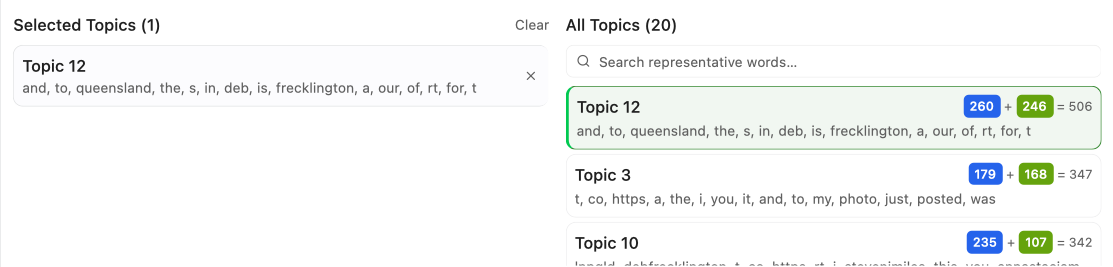
Choose Add to Project to publish
manually selected topic data and linked topic meanings as new Data Blocks.
For a two-source result, Sync columns applies exact, case-sensitive shared
source-column selections to both checked Data Blocks. Enabling it combines the
currently selected shared names; individual choices and Select all or
Select none then update both sources. Source-only columns are disabled while
sync is active, and an unchecked source keeps its independent selection.
TOPIC_top1 remains required and is not synchronised. If fewer than two sources
remain checked, Sync columns turns off automatically. When the source Data Block
was itself made by Topic Modelling, its old TOPIC_ columns are not offered: the
new ones replace them. A TOPIC_ column cannot be the text to model, because it
holds topics from an earlier run rather than documents; Wordflow says so.
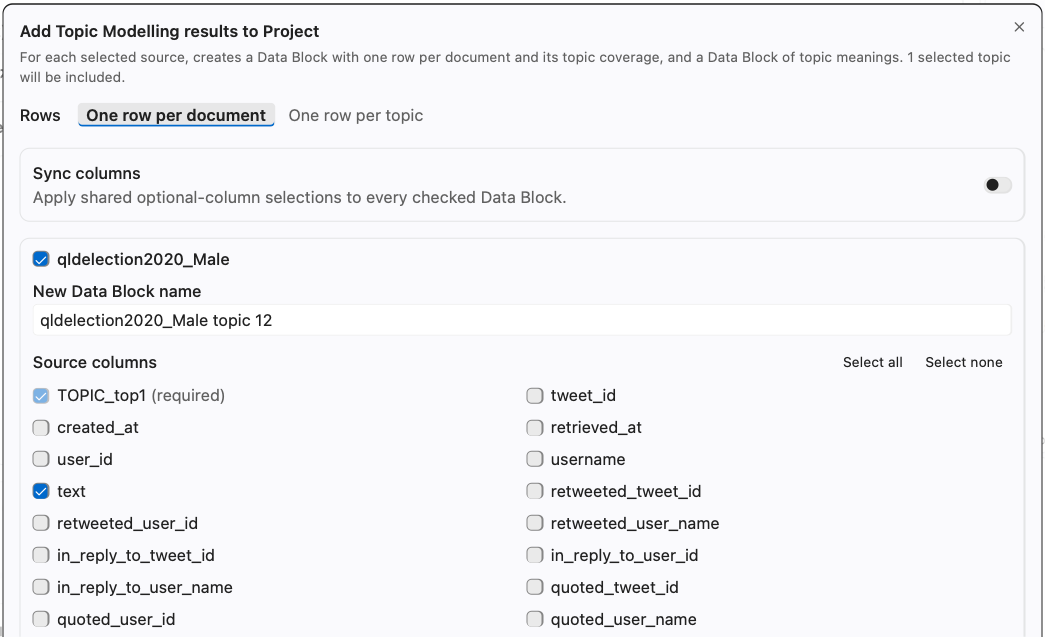
The Rows choice in the dialog sets how rows are formed:
-
One row per document (default): one row per source document, with its dominant topic (
TOPIC_top1) and full topic coverage (TOPIC_coverage).Most tools cannot use the
TOPIC_coveragecolumn yet. Analyses leave it out of the metadata they show and carry; in the Data Builder only Filter can use it (to keep rows by a topic threshold), and in the Data Editor it can only be duplicated, renamed, or deleted. CSV and Excel exports write it as text; Parquet keeps it as it is. -
One row per topic: one row for each topic in each document. The document column holds only the segments assigned to that topic, joined by line breaks in source order, so a document with three topics becomes three rows. Each row also carries the topic (
TOPIC_topic), its share of the document's text (TOPIC_share), and how many segments it joined (TOPIC_segment_count). Segments with no topic are left out. Use this when you are interested in particular topics rather than whole documents.
The suggested name for each new Data Block includes the selected topic numbers, for example Corpus topic 5 or Corpus topics 3, 7 (with more than three topics selected, Corpus 8 topics). One row per topic names end in segments, for example Corpus topic 5 segments. You can edit the name before adding it.
Both modes use the topics as currently shown, including any merging from Number of topics. One row per topic needs a result from this version of Wordflow; for older results, re-run the analysis first.
The download control exports the current panned and zoomed graph viewport. Its header records Data Block, cluster count, Top topics per document, random seed, and Topic count. CSV output still contains every topic and its current counts.
Clear removes this tab's result. The selected Segments method, Max tokens value, and Topic size range remain available for the next run.
| Symptom | What to try |
|---|---|
| Almost all segments have No topic | Increase sampling, try another segmentation method, or check whether the corpus has shared themes |
| Topics change substantially between runs | Increase sampling and compare runs with fixed seeds |
| Representative words describe formatting rather than subject matter | Clean boilerplate or choose a segmentation method that better matches the document structure |
| A structural unit becomes many segments | Increase Maximum tokens per segment or choose a coarser segmentation mode |
| Run time is very long | Reduce the per-Data-Block sampling percentage |
| Setting | Default |
|---|---|
| Sampling | 100% per Data Block |
| Segments | Automatic |
| Max tokens | 256 |
| Topic size | 10 to Auto |
| Seed | 0 |
| Per document | 2, or the available Topic count when smaller |
| Words | 15 |
- Run a corpus with Automatic segmentation.
- Change Top topics per document and compare bubble membership without moving the map.
- Move Number of topics down and compare the merged representative words.
- Clear the Result, choose Paragraph or Sentence, and run again with the same sample and seed.
- Compare the topic map, representative words, and how many segments have No topic.