Tutorials Quotation
Quotation Extraction identifies quoted speech, speakers, and speech verbs in English news-style text. The built-in rule-based engine is based on the Gender Gap Tracker work from Simon Fraser University's Discourse Processing Lab.
The rules were developed for Canadian news. Results may be less accurate for social media, fiction, historical documents, or other English varieties. Review a representative sample before drawing conclusions from the output.
Add one Data Block and choose the source text column. A fresh selector uses the Data Block's saved Document Column Preference when available. The Analysis records the exact Data Block and column used for the run.
Quotation uses Wordflow's built-in engine, which needs no setup and runs where Wordflow runs. Versions before 0.7.10 also show a Remote option with an Engine id: it only works on a Wordflow server whose operator has set up a remote quotation service, and the public Wordflow versions do not, so keep Built-in selected.
Context (words per side), in the Result panel header beside Show metadata, controls how much source text the Result table displays around the highlighted quotations. It only changes what is shown, so changing it never needs a new Preview.
- Default: 5 words per side.
- Range: 0–2000.
- Use 0 to keep the display close to the extracted speaker, quote, and verb.
Choose Preview to see the first pages of quotations. Each page is worked out when you open it, from the data as it was when you chose Preview. After a Preview, the button turns on again when you change the Data Block, text column or engine. See How Preview, Run and Clear work.
The table pages through source documents and omits documents with no extracted quotation. A source document can contribute several quotation rows.
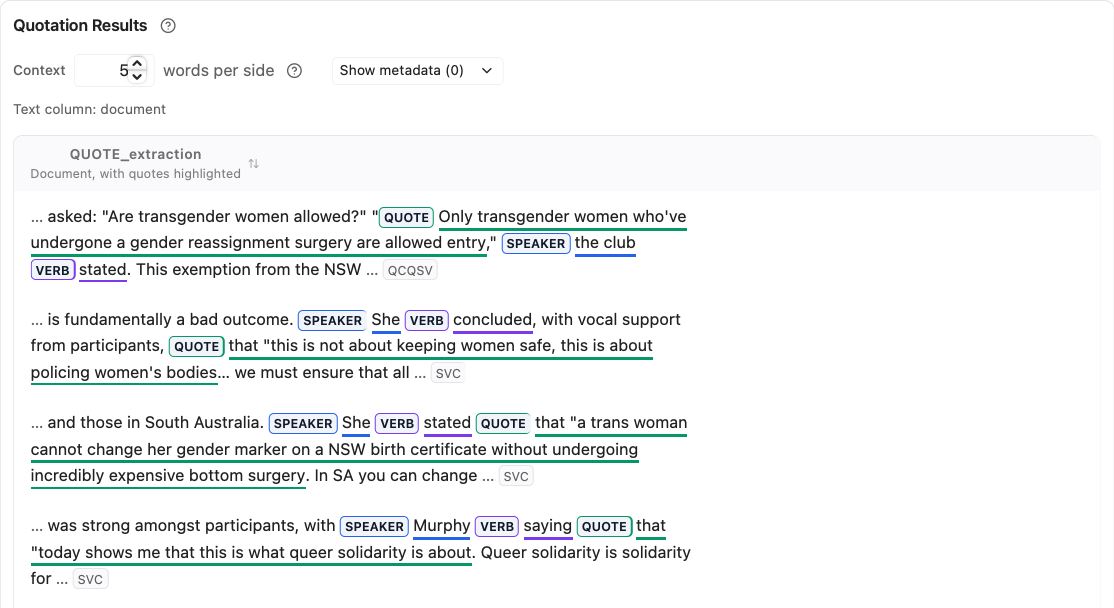
| Colour | Entity | Meaning |
|---|---|---|
| Blue | Speaker | The person attributed as speaking |
| Green | Quote | The quoted text |
| Violet | Verb | The speech verb, such as said or argued |
To see more rows at once, drag the table's bottom-right corner down (double-click the corner to let it fill the space again).
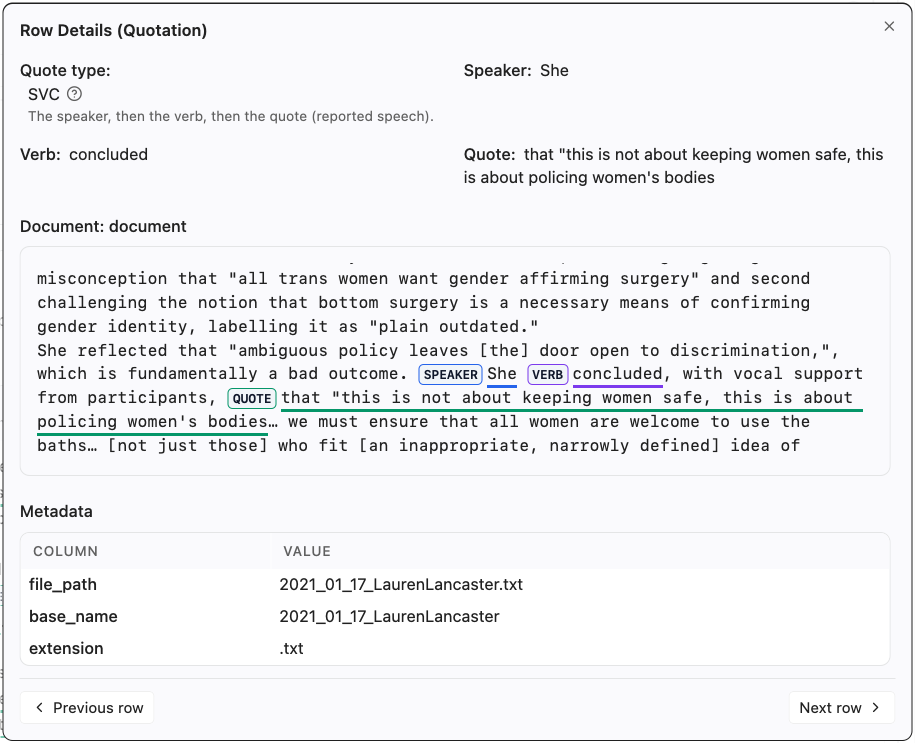
Click a row to inspect the full source document in Row Details, which opens
scrolled to the highlighted quote. The metadata selector (Show metadata)
can add source columns and generated quotation columns to the table. Date and
date-time columns are shown as dates. The
QUOTE_extraction document header sorts by the selected text column. Other
metadata headers can be sorted too. Generated quotation headers cannot be
sorted in Preview, because Preview finds quotations one page at a time.
Clicking a header again reverses the order; Original order, above the
table, returns to the Data Block order. What you see is what you get: Add to
Project writes the quotes in the order the table shows.
Changing the page, Documents per page, or sort order works out that page again from the same Preview. It does not change the Preview.
Choose Run at any time to find every quotation in the Data Block. Later
edits to the Data Block do not change the result, and Run does not add a Data
Block to the Project. After Run, Quotation Results shows the complete
result and pages by quotation: each row is one quotation with its QUOTE_*
columns, so a page never grows unexpectedly long. Click a row to open Row
Details, where the document scrolls to the quotation and the metadata below
it shows which document the extract comes from. After Run, the results do not
show the Preview page summary.
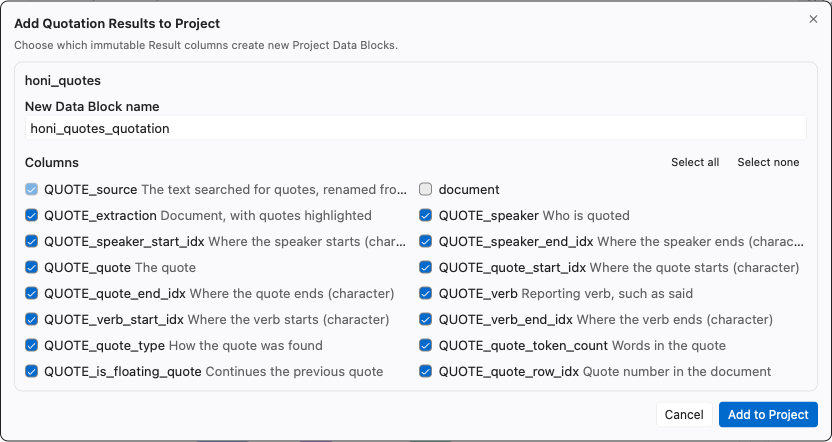
Use Add to Project to publish selected Result columns as a new Data
Block. The document column is required, metadata columns start unselected, and
analysis columns start selected. You can run Quotation on that Data Block again:
the new run replaces its Quotation columns (QUOTE_extraction, QUOTE_speaker,
QUOTE_quote, QUOTE_verb, QUOTE_quote_type and the other QUOTE_ fields)
with its own, so it keeps one set; a column of yours with one of these names is
treated the same way. If the text you search is itself one of them, for example
QUOTE_extraction, the Result keeps it as QUOTE_source (or QUOTE_source_2
if that name is taken).
Each extract has a Quote type (QUOTE_quote_type), which Row Details also
explains in words. Most types are letter codes that list the parts of the quote
in the order they appear in the sentence: Q a quotation mark, C the
quoted content, V the speech verb, and S the speaker.
| Quote type | Example | Meaning |
|---|---|---|
| QCQVS | "We will act," said the minister. | Quote in quotation marks, then verb, then speaker |
| QCQSV | "We will act," the minister said. | Quote in quotation marks, then speaker, then verb |
| SVQCQ | The minister said, "We will act." | Speaker, then verb, then quote in quotation marks |
| SVC | The minister said the government would act. | Reported speech: speaker, then verb, then quote, with no quotation marks |
| CSV, CVS | The government would act, the minister said. | Reported speech with the quote first |
| QCQ | A quoted sentence straight after another quote | A floating quote: it continues the previous quote and takes its speaker, so it has no verb |
| AccordingTo | According to the minister, the government will act. | The speaker is introduced with "according to" |
| Heuristic | Any other text in quotation marks | Found by a fallback rule for quotation marks; the nearest verb and speaker are used and may be missing |
Other orders of the same letters follow the same pattern.
The exported columns QUOTE_speaker, QUOTE_verb, and QUOTE_quote hold the
text of each part, and their _start_idx and _end_idx columns give its
character positions in the document, so each part can be located or marked up
in other software.
The tab keeps its results when you move to another tool or reopen the Project. Clear removes them. Settings are locked while Preview or Run is working, and Stop cancels it. After a failure or a stop, Preview and Run stay off until you choose Clear. See How Preview, Run and Clear work.
| Symptom | Likely cause | What to try |
|---|---|---|
| Remote engine is rejected | The ID is empty or not configured by the operator | Use Built-in or ask the deployment administrator for a valid ID |
| No quotations are shown on one page | The current source-document batch has no extracted quote | Continue to the next page |
| Precision is low | The text differs from the news style targeted by the rules | Review the disclaimer and validate a representative sample |
| A generated header does not sort | Preview finds quotations one page at a time | Sort by the document header or metadata |
| Preview does not show a later edit to the Data Block | Preview keeps the data as it was when you chose it | Choose Preview again after changing a setting |
| Setting | Default | Notes |
|---|---|---|
| Engine | Built-in | Remote requires an operator-configured engine ID |
| Context length | 5 words per side | Display only, range 0 to 2000 |
| Preview data | The data when you chose Preview | Each page is worked out when you open it |
- Select a news Data Block and Preview with the built-in engine.
- Inspect highlighted speaker, quote, and verb spans in several rows.
- Change the display context length.
- Sort by the virtual document header and a source metadata column.
- Run, inspect Quotation Results, and use Add to Project if you need a new Data Block.