Tutorials Export
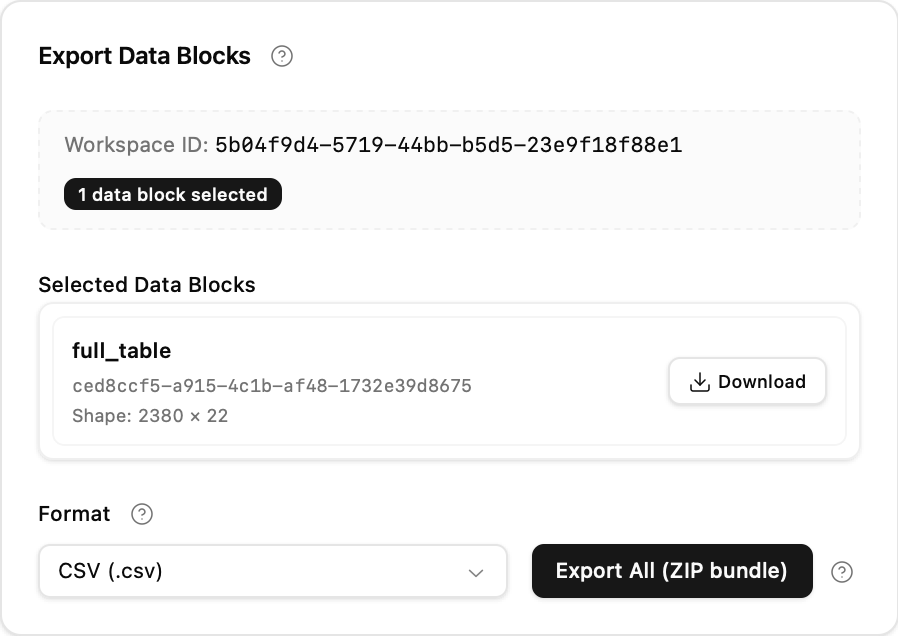
Export lets you download any number of Data Blocks for offline analysis or sharing. A single selection downloads as one file. Two or more selections are packaged by the backend into one ZIP containing one file per Data Block.
Use Add Data Block to choose individual Data Blocks (or a Data Block's + button in the graph or the Data Blocks list), or Add all to select every remaining Data Block. There is no selector maximum. Remove a card with its ×, or use Clear, to change the selection.
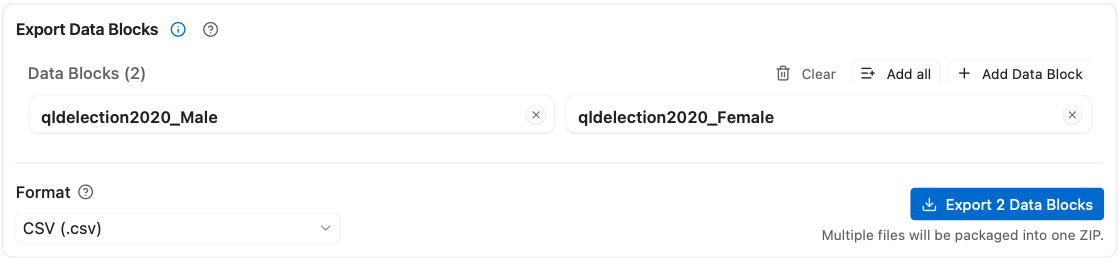
Use the Format dropdown to choose the output file format:
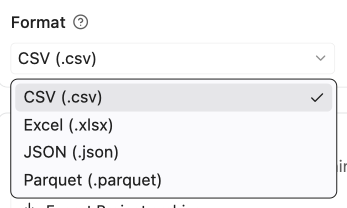
| Format | Extension | Best used for |
|---|---|---|
| CSV | .csv | Maximum compatibility; opens in any spreadsheet, text editor, or corpus tool |
| Excel | .xlsx | Opening and sharing in Microsoft Excel |
| JSON | .json | Hierarchical or nested data; web and API workflows |
| Parquet | .parquet | Efficient columnar storage; best for large datasets or re-importing into the app |
The same format applies to all Data Blocks in a bundle export.
CSV files are saved as UTF-8 with a byte-order mark (a hidden marker at the start of the file), so Excel shows curly quotes and non-English text correctly when you double-click the file. Columns that hold lists or structured values (such as tokens) are written as JSON text in CSV and Excel files.
Excel has no time zones, so date-times are written in UTC in Excel files; CSV, JSON, and Parquet keep the time zone.
An Excel worksheet holds at most 1,048,576 rows, and each cell at most 32,767 characters. If a Data Block is larger, or has longer texts, Excel export stops with a message; export it as CSV or Parquet instead to keep every row and the full text.
Click Export 1 Data Block to download one file directly in the selected format.
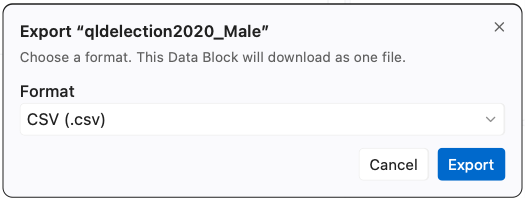
For a shortcut anywhere in the Project Graph, open a Data Block's node menu, choose Export, select the format in the dialog, and click Export. This shortcut always exports that one Data Block directly.
With two or more selections, the action becomes Export N Data Blocks. The backend writes every Data Block in the selected format and returns one ZIP in the same order. Files inside the ZIP are named after their Data Blocks, with a numeric suffix when names collide. A note below the button says whether the download will be one file or one ZIP.
Export Project archive, in the Export Project card, remains a separate action. It exports the complete portable Project, including its graph, Tabs, Analyses, and Data Blocks, for later import into Wordflow. It is the same archive as Download in the Data Loader's Project manager.

| Symptom | Likely cause | What to try |
|---|---|---|
| Download button does nothing | Browser blocked the download | Check browser download permissions or pop-up blocker settings |
| File opens with garbled characters | The tool did not read the file as UTF-8 | Excel reads Wordflow CSV files correctly; in other tools, choose UTF-8 encoding when opening the CSV, or export as Excel (.xlsx) |
| Excel export stops with a message | The Data Block has more than 1,048,576 rows or a text longer than 32,767 characters | Export as CSV or Parquet instead |
| Date-times in Excel are hours off | Excel files store date-times in UTC | Use CSV, JSON, or Parquet to keep the time zone |
| Parquet file unreadable | Tool does not support Parquet | Use pandas, DuckDB, or re-import into this app instead |
| Setting | Default | Notes |
|---|---|---|
| Format | CSV | CSV, Excel, JSON, or Parquet; change to match your downstream tool |
Topic coverage columns (TOPIC_coverage, from Topic Modelling) are written as
text in CSV and Excel files; Parquet keeps them as they are.
- Add one Data Block, choose CSV, and export it as a direct download.
- Add a second Data Block and export again; confirm the download is a ZIP.
- Open the ZIP and confirm that it contains one CSV per selected Data Block.
- Choose Parquet, use Add all, and export every Data Block together.